Gaming
My living room setup was in need of a complete overhaul—a new gaming PC and a killer NAS.
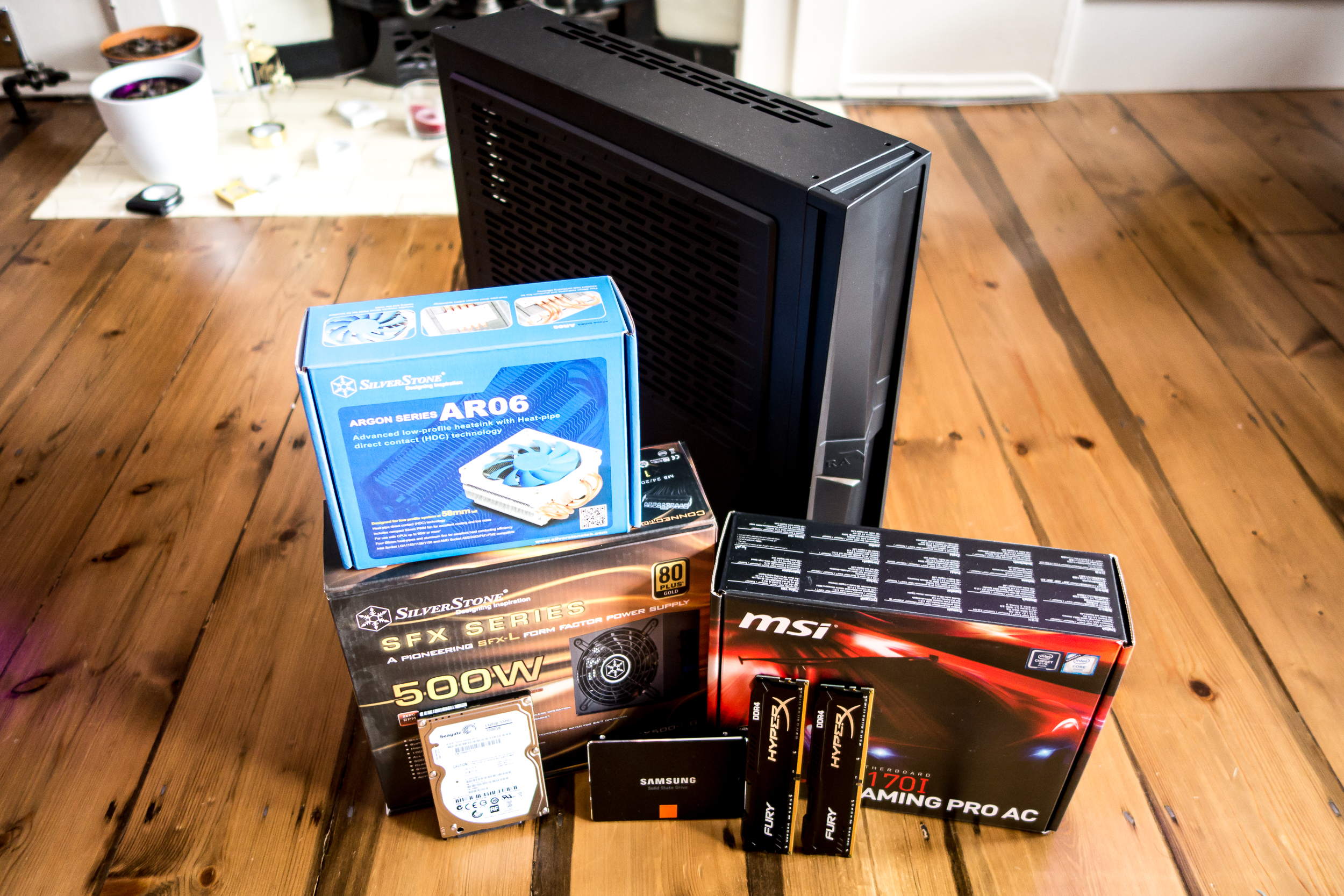
Way back at the beginning of 2015 I tasked myself with building a gaming PC for the living room. 12 months later and finally—after coming to work for Ars, travelling halfway around the world a few times over, and patiently waiting for someone to release a console-like case that didn’t suck—it is done.
As is usually the case when embarking on some half-baked idea to use technology to improve your life—or in my case, provide a prettier way to procrastinate—there’s a tendency to over-complicate things. Case in point: I already had a PC in my living room; a very old, very loud, but still perfectly functional HP Microserver that I used as a NAS and media player. The gaming PC could replace the media player part, but what about the storage?
So I needed a gaming PC, and some sort of network-attached storage (NAS)—either one built out of old parts, or something shiny and new from Amazon. Then I remembered that thanks to my recent acquisition of various bits of IoT gear, adding two new devices instead of one would leave me short an Ethernet socket—and no, even with a router capable of 802.11ac, Wi-Fi still doesn’t trump good ol’ fashioned cables for speed and reliability.
So that’s a gaming PC, a NAS, and a new Ethernet switch. Oh, and I needed new power strips, because it turned out I’d ran out of sockets. Like I said: tech tends to get complicated.
The trouble with PC cases
Fortunately, the power strips and the unmanaged 8-port Ethernet switch were easy fixes, bar the laborious process of rewiring everything. The gaming PC however, was trickier. The basics are simple enough: a minimum of an Intel i5 processor, a decent amount of RAM and storage, and a good graphics card. The was one obvious complication, though: because the box will be located in the living room, it needs to be as discreet and as quiet as possible.
There are some pre-built options. Alienware’s Alpha, for instance, is a tiny and surprisingly understated machine—for Alienware at least—that sports a Core i5-4590T, 8GB of RAM, and 1TB hard drive for £630 (cheaper models with an i3 and less RAM are available). However, the custom 2GB Nvidia GPU it ships with isn’t upgradable, and is roughly as powerful as 860M mobile chip. That’s fine for 1080p at medium or high settings, but not enough to outclass consoles, and certainly not enough to drive the 4K TV I’d be plugging it into.

The Alienware Alpha is a fine machine, but not particularly powerful. Credit: Pierre Lecourt
The step up from the Alpha, Alienware’s X51, is a better option, but expensive when you consider the £630 model only comes with an i3 processor and terrible Nvidia GTX 745 graphics card. Jumping up to the model with a far better AMD Radeon R9 370 and Core i7 pushes the price up to just shy of £1000. That’s not to mention that, while you can upgrade the graphics card, you’re limited by space and the custom power supply.
The X51’s form factor is a good one, though, the thin vertical arrangement being far more appealing than the cube-shaped PCs that tend to dominate small-form-factor (SFF) builds. Thanks in part to Valve’s Steam Machine initiative, case manufacturers are finally starting to offer vertical cases for building small PCs using off-the-shelf parts.
Silverstone, for instance, has the very-well-reviewed RVZ01 mini-ITX case, which I’d have used if it weren’t for the fact that it’s still quite large by SFF standards. Next on the list was Fractal’s Node 202, a case I’d initially settled on thanks to its understated look and clean internal design. Unfortunately, getting hold of a Fractal 202 proved tricky thanks to a complete lack of stock here in the UK.
Then, come October, Overclockers UK gave me a nudge and told me about an update to the RVZ01, the RVZ02—and it was glorious. Not only is the RVZ02 slimmer than both the RVZ01 and Core 202 at just 87mm, it’s relatively cheap at around £76. There’s space inside for two 2.5-inch drives, graphics cards up to 33cm long and 12cm wide (making it compatible with basically all of them), and it sports a pleasingly sharp, but subtle design.
There’s always a catch
Naturally, there are some compromises. For starters, there are no external cooling fans at all on the RVZ02. The GPU and CPU rely on their built-in fans alone to stay cool, which risks throttling, and certainly rules out any extreme overclocks. The CPU cooler can’t be taller than 58mm either. The RVZ02 also only works with smaller SFX or SFX-L power supplies, which tend to be pricier than their ATX counterparts. Despite all that, the RVZ02 remains one of the better options for a slim case that takes a full-size graphics card.
The sides of the RVZ02 feature removable dust filters for easy cleaning.
| SYSTEM SPECIFICATIONS | |
|---|---|
| OS | Windows 10 |
| CPU | Intel Core i7-6700K |
| RAM | 16GB Kingston HyperX @2400Mhz |
| HDD | 256GB Samsung 940 Pro, 1TB Seagate SSHD |
| Motherboard | MSI Gaming Z170I mini-ITX |
| Power Supply | Silverstone SFX-L 500W |
| Cooling | Silverstone SST-AR06 |
| Case | Silverstone RVZ02 |
| Graphics | Nvidia GTX Titan X |
Working inside the case is a breeze, something that can’t be often be said for mini-ITX cases. The two side panels slide off to reveal a surprisingly large compartment for a motherboard, PSU, two tool-free 2.5-inch drive mounts, and a slimline optical mount, while the other side has a space for a GPU that sits on an included riser card. It’s an odd configuration, but it keeps the case slim, and the CPU and GPU well apart, which helps with keeping them both cool. It’s worth noting that the clear plastic version of the case doesn’t feature any dust filters on the side panels, which—given they’re primary air intake for all the components—is a strange omission. Happily, the model with black side panels does, so if you do buy a RVZ02, be sure to get that version.
There are other nice touches throughout that make installation easier: pre-installed motherboard standoffs, a large cut-out behind the CPU for cooler installation, and plenty of space around the PSU to mount cables. Even using a larger SFX-L PSU—which, until Corsair gets its act together and releases its 600W SFX PSU, is the best SFX-sized PSU going thanks to its larger and quieter 120mm fan—works without issue. Cable management is always going to be a struggle in slim case, but I was pleasantly surprised to find that there’s ample space around the PSU to stash any excess cable.
Sticking with the Silverstone theme, I opted for the company’s SST-AR06 CPU cooler. While I can’t say I like its lurid blue fan, the cooler is the best option for the RVZ02, since it’s the maximum height of 58mm, putting the 92mm fan right up against the side panel to suck in air. Something like the Noctua NH-L9i would work too, but it’s much shorter at 37mm. For the CPU I used an Intel Core i7 6700k, which might seem like overkill but I plan on hanging onto this PC for a little while. There’s a non-“K” version of the chip available if you’re not planning to overclock, but the price difference in the UK is negligible.

MSI’s Gaming Z170I motherboard is one of the best value Skylake boards around, and doesn’t skimp on the features.

On board IO includes four USB 3.0 ports, three USB 2.0, a PS/2 socket, HDMI and DisplayPort outputs, 8-channel audio, and Intel ethernet.
Housing the CPU is MSI’s Gaming Z170I Skylake board. MSI’s boards have come on leaps and bounds in recent years, their reliability and stability up there with the likes of Asus and Gigabyte. It has a rich set of features, too, including an Intel i219 NIC, dual-antenna 802.11ac Wi-Fi, and a fully isolated audio PCB. Unfortunately, the M.2 slot is limited to 60mm SSDs, so something like the Samsung 950 Pro won’t fit, and there’s only USB 3.0 support, not 3.1. Those aren’t deal breakers for me, and given just how few mini-ITX Skylake boards are on the market right now—and that it’s one of the cheaper ones—the Z170I is a great deal.
The rest of the components are made up of a few bits and pieces I pulled from old PCs, including a 250GB Samsung 840 Pro SSD, a Seagate 1TB SSHD with 8GB of flash storage, and, uhh, an Nvidia Titan X. The Titan X has been sitting largely unused in my workstation/gaming PC (I do most of my gaming on the couch these days), so I figured why not use make better use of it? Plus, it’ll be interesting to see how it does without airflow and with the stock Nvidia cooler. If you’re doing this build yourself, the cheaper 980 Ti will give you the same performance for way less money, while the 970 is ideal for 1080p. AMD fans should check out the newly released 380X for 1080p, or a Fury for 4K.
The total build cost if using the more sensible GTX 980 Ti is around £1300 (probably about $1600 in the US). With the Titan X it comes to around £1600. Considering the specs, that’s far better value than a pre-built machine.
NAS nightmares
I was tad overconfident when it came to the NAS part of the living room upgrade. I mean, how hard can it be right? Either you build a NAS from a old PC and load it up with something like FreeNAS, or you buy one off-the-shelf. The trouble is, the sheer volume of options when it comes to networked storage is bewildering. Excluding the build-your-own route for the moment, there are hundreds of different NAS enclosures available from places like Amazon and Overclockers, all with different types of software packages, processors, and storage limits.
At the extreme end of the consumer-friendly selection are the Western Digital My Cloud devices, which are sealed units with pre-installed drives that run nice Web-based interfaces and promise easy setup. Then there are business-focused devices and rack-mounted units from the likes of QNAP, Buffalo, and Synology that sport eight or more drive bays and lots of customisability. I knew I wanted the flexibility of using my own drives, which ruled out devices like the My Cloud, but I didn’t need something as large as an 8-bay NAS.
Indeed, it was size that put me off building my own NAS. The default configuration for building a NAS—a mini-ITX board with lots of SATA ports and low-power CPU—is great from a performance point of view, but most NAS cases tend to sport five or more hot swap bays, with space for a regular ATX PSU. Of the cases I found—which included the likes of the Silverstone DS380B and Lian-Li PC-Q25—all were bigger than the HP Microserver I had been using, which meant they wouldn’t fit in the same cabinet.
Other solutions like using a Raspberry Pi or even one of Intel’s NUC motherboards to build a NAS were too limiting—the NUC has just one SATA port, for instance—and it still didn’t resolve the problem with a lack of small cases. If anything, I wanted something smaller than the Microserver. That left the middle ground of NAS devices, those aimed at prosumers and enthusiasts who want a good backup solution and the ability to stream and store media, but still want to use their own drives.
Synology’s DS214play is a tiny NAS that’s barely bigger than two 3.5-inch drives stacked side-by-side.
In an effort to keep things as small as possible, I decided to keep the entire 4TB on a single Seagate NAS drive, using another for mirroring in RAID 1, giving me double the storage I had in the Microserver. Performance wouldn’t be as good as in RAID 5, but a 2-bay NAS is smaller and uses less power. Excluding dodgy no-name brands, Seagate, Synology, Netgear, QNAP, and Buffalo all make decent 2-bay NAS devices.
After much Googling and reading of reviews, I settled on the Synology DS214play, which costs around £230. A combination of size, speed, and software support made it the winner. It’s very small for 2-bay NAS, sports a 1.6GHz dual-core Atom processor and 1GB of RAM, and the Web interface looks relatively simple to use and maintain. One downside, though, is that it doesn’t have a second Gigabit Ethernet port for Link Aggregation, which limits transfer speeds to around 100MB/sec.
What particularly attracted me to the DS214play is Synology’s Cloud Station service, which works like Dropbox and lets you drop a file into the Cloud Station folder where it’s automatically backed up to the NAS. There are also a bunch of apps you can download to have the NAS moonlight as a mail server, IP security camera station, VPN, or Web server. Those into streaming media to an iPad can also make use of the DS214’s ability to transcode 1080p video files on-the-fly to a compatible format.
Note: The DS214play has recently been discontinued and replaced with the slightly cheaper DS216play. It adds 4K transcoding support, but loses the quick-release drive bays, front panel USB port and SD card slot, and the rear eSATA port.
All too easy
I won’t go into too much detail about the assembly of either the PC or the NAS, simply because there’s not much to tell—I had both assembled and ready to go within the space of an hour. The RVZ02’s side panels both come off entirely, revealing a surprisingly large amount of space to work in and insert components like the motherboard, PSU, and GPU. Admittedly, the CPU cooler was a little fiddly to attach—I’d advise keeping a friend around to hold it in place while you put in the screws—but this is sadly par for the course with third-party air coolers.
It was a similar story for the DS214play, which has entirely tool-less hard drive sleds that snap into place, along with a front cover that gently stays put thanks to rubber stoppers on its rear. Once the drives were in place it was simply a case of plugging it (via an external power brick) and setting it up via a Web browser. Installation takes around 10 minutes, during which time it automatically formats the drives to its own Synology Hybrid RAID (SHR) format—essentially RAID 1 in the case of the DS214play—although you can choose standard RAID levels if you prefer.
It also installs DiskStation Manager on the drives, which is Synology’s Web-based management tool that’s sort of like a full OS-like environment. It has a desktop of sorts, along with multitasking for the NAS’s various apps (or packages in Synology parlance). By default, it installs a bunch of media packages that serve up videos, photos, and music across the network. I don’t have much use for Video Station’s ability to pull in subtitles and box art for films, but the DLNA/UPnP server and iTunes Server capabilities of the Media Station and Music Station apps are great.
Once I’d copied all my files over the drives via the front USB port (and a handy SATA-to-USB adaptor), the NAS automatically made them available across the network. In Windows the media server, iTunes server, and file server all appeared in the local network without issue. After the drama I had with the HP Microserver, which ran Windows 7, and an old LG NAS that refused to talk to anything else in my house, the Synology’s simplicity came as something of a revelation. You can tweak all sorts of settings if you’re so inclined of course, but for those that just want something that works without much effort, the DS214play is excellent.
Surprising performance
OK, so a combination of an i7, 16GB of RAM, a speedy SSD and a Titan X was never going to be slow—and for a full set of benchmarks on the i7 6700K and the similar 980 Ti, check out the Ars reviews. But, with the RVZ02 not featuring any case fans to blow cool air to the CPU or GPU, the question is whether the system can maintain its performance under load. The good news is that yes, in real-world situations—that is, playing a game—the system works brilliantly. The bad news is that under more strenuous synthetic benchmarks, things get very toasty indeed.
But let’s start with the good stuff: the CPU. The SST-AR06 cooler does an admirable job of keeping the CPU cool under load. At idle, temperatures hover around 37 degrees Celsius, jumping up to around 72C when playing a particularly CPU-bound game like Cities: Skylines. Playing more GPU-bound games like Just Cause 3 resulted in CPU temperatures hovering around 68C. Those are all well below the recommended 80C limit for sustained CPU usage, and even under load the fan is surprisingly quiet.
Just for kicks I also ran Prime95. While it’s fallen out of favour for stress testing in recent years—largely because it doesn’t represent real-world usage—it can still be useful for short-term testing and identifying maximum CPU temperatures. As expected, after half an hour of running Prime95 on its standard “Blend” setting, the CPU hit an extremely toasty 88C on one of its cores. Even that is a good result considering there are no case fans helping the CPU cooler along, and that the PC is stuffed into a small space in my living room.
The GPU didn’t fare as well. The Titan X uses Nvidia’s standard cooling enclosure, which is a blower-style design. Blower cards are normally great for smaller cases, because they suck in cool air from a single fan, and then blow hot air out of the back of the case, rather than circulate it inside. However, I suspect that a graphics card with multiple fans and beefier heatsinks would do better in the RVZ02. The GPU compartment is completely isolated from the rest of components anyway, and without a case fan to bring in cool air you want as many fans pushing air over the GPU as you can muster.
The RVZ02 is surprisingly easy to work in, despite its small size. This lot went in around 15-minutes.
But, if you’re stuck with a blower-style cooler on your GPU, it will work in the RVZ02, you just need to make a couple of tweaks. At stock settings under load—in this case the Unigine Heaven benchmark—the Titan X hits its hard temperature limit of 83 degrees Celsius after just a few minutes. The Titan X’s advertised boost clock is 1075MHz, although most users will see boost clocks far above that with a good cooling setup, up to as much as 1200MHz. The RVZ02, however, is not a good cooling setup. The core clock wavers between 1000MHz and 1116MHz, before settling at 1050MHz.
That’s not bad going, but is technically below the advertised boost clock. However, one thing about Nvidia’s stock cooling setup is that it imposes a 50 percent speed limit on the cooling fan (around 2460 RPM). Using something like MSI’s Afterburner software you can override that limit your own custom fan curve at the expense of a little more noise. After much experimentation, I settled on 65 percent as the maximum fan speed.
While that makes the PC more audible, it’s no worse than a PlayStation 4’s fan going at full pelt, and because it’s on the opposite side of the room, it’s not too noticeable. With the fan speed tweaked, the Titan X hovers around a more respectable 1100MHz under load. Either way, though, it just goes to show that if you really wanted to run a high-end graphics card without any case fans, you can, and do so with little performance loss.
As for the NAS part of my living room setup… well, it was no contest against the ancient HP Microserver it replaced. Write speeds over WiFi—from a SSD-equipped laptop connected via 2.5GHz wireless N transferring a 5GB video file—almost doubled to 30MB/s, while transfer speeds over Gigabit Ethernet went from 30MB/s to 91MB/s. For my purposes that’s more than fast enough, and 1080p video files streamed flawlessly to the new living room PC and to other devices.
Totally worth it
Suffice it to say, I’m rather pleased with how this little living room project turned out. The RVZ02 is an impressive case, with a smart design and excellent build quality—and it’s not even expensive. What blew me away, though, was the ease and speed of setting up Synology’s DS214play. It’s been a long time since I’ve dived into the NAS market—it’s not a device you tend to replace that often—and software and features have come on leaps and bounds in recent years. I’m not into spending my days configuring network shares and user permissions, and if you’re the same, the DS214play is well worth checking out.
Now it’s your turn: what have you got going on in your living room? Have you gone with a self-built NAS, or is an off-the-shelf device more your bag? Does a gaming PC under the TV appeal? And if you’ve already got one, what’s your preferred case of choice? For me, sticking a gaming PC in the living room was long overdue. And so far, it’s done wonders for my Just Cause 3 time. Super-mega-awesome-explosions in 4K? Hells yes.

Mark is Consumer Editor at Ars Technica UK by day, and keen musician by night. He hails from the UK, the home of ARM, heavy metal, and superior chocolate.