What is Boxee?
Boxee can be seen as the “media player” and is a fork of XBMC, and was originally intended to run a HTPC. As time went on, together with D-Link a set-top box was launched dedicated to run Boxee November 2010: The Boxee Box.
In the meanwhile, Boxee is dead and joined Samsung.
The Boxee Box is a small, and interestingly shaped, intel (Atom) based HTPC offering the usual like Wifi, Ethernet, HDMI, Analog and Optical Audio and an SD-Card reader. The most interesting part, besides the shape of the case, was the remote control (which later was sold as a separate remote, for use with PC’s). One side was a very simple left. right, up, down, select setup, where as the other side had a complete keyboard.
A full tear down can be found at iFixIt.
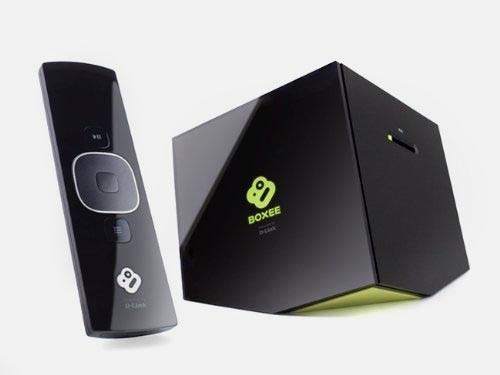
Boxee Box by D-Link
Quite a few people bought this little media player box (almost 30,000 at the end of 2013), but the Boxee team has sold out to Samsung and let’s be honest: Boxee never could really compete with XBMC anyway … so why not run XBMC on a Boxee Box? After all, Boxee is a fork of XBMC, so that should work, right?
Well not exactly, it took a group of smart people to get XBMC to run on a Boxee Box (github – contributers). Without their hard work none of this would have been possible, so all respect and thanks to them for this awesome job!
Getting Started for XBMC on Boxee Box
So what do we need? Pretty simple: some software, a USB stick and a Boxee Box.
This trick will also work with an SD-Card, but there have been plenty reports of the SD-Cards/Card-reader being slow, unreliable, turning flaming hot, etc. Most recommend using a USB stick, so that’s what we’ll do here as well.
The requirements of the stick are not mind blowing, I’ve done this successfully with an old (USB 2.0) 4Gb USB stick.
Please keep in mind:
– Fast USB 2.0 Sticks improve XBMC performance
– External (USB 2.0) harddisks will work as well and in general will perform even better
– SD-Cards can be used but tend to become hot and perform rather poorly
Needed Software
Before we can run XBMC on Boxee Box we will need to apply a little hack, called “Boxee+Hacks” which can be downloaded from Boxeed – you will find instructions how to install it there as well, but we will describe it on this page as well. This plugin/hack offers a great deal of cool fixes and addons for your Boxee Box, so even if you’re not planning to run XBMC, this plugin is highly recommended!
I strongly recommend downloading the most recent version from Boxeed, but as usual we offer a backup at Tweaking4All as well (which might be outdated!).
Getting the latest Build of Kodi …
The developer has indicated that his Boxee Box has died and that new releases can be found at Github as of now.
Get the latest version here: github.com.
Download - Boxee + Hack
| Filename: | boxee-plus-hack.zip |
| Platform: | Undefined |
| Version: | unknown |
| File size: | 541.8 kB |
| Date: | 2014-02-17 |
| Download Now Send me a cup of Coffee | |
Besides this little hack we will of course also need a Boxee Box suitable version of XBMC. The most recent version can be found in the Boxeed Forum or from Devil-Strike and I highly recommend downloading the latest version there as well.
Download - XBMC for Boxee Box
| Filename: | xbmc13-final.boxeebox.1.0.0.alpha6-9fb32c8.zip |
| Platform: | Undefined |
| Version: | v13 Final a6 |
| File size: | 93.2 MB |
| Date: | 2014-05-05 |
| Download Now Send me a cup of Coffee | |
Credits …
Please keep in mind that I’m just describing the steps I’ve done to get my Boxee Box to run XBMC.
None of this would be possible without the hard work of people at XBMC, Boxee.in and Boxeebox-XBMC at GitHub!
RECOVERY BOOT MODE
Your Boxee Box, although it’s a cheaply made HTPC, has a Recovery Mode, which can be used if your Boxee Box get’s stuck with a black screen after booting (not caused by the hack or XBMC!).
The trick works as follows:
– Unplug Power, Wait 5 seconds, Plug Power back into your Boxee Box,
– Press and hold the power button for 6 to 8 seconds and let the button go after that,
– Your Boxee Box logo should now appear YELLOW and you’re box will start in recovery mode.
In Recovery Mode you’ll have a few options, including “Factory Restore” (recommended) and “Update” (the latter expects the file “boxee.iso” on a USB stick – the latest version can be downloaded here).
More info can be found on the Unofficial Boxee Wiki.
Installing the Boxee+Hack
The hack is needed to prevent Boxee (the software) from starting so we can “inject” XBMC instead. Installation, on a USB stick (SD-Card will work as well, however USB stick is recommended):
Step 1: Shutdown your Boxee Box completely and remove the power supply cable!
Step 2: Partition a USB stick to one Partition, formatted MS-DOS FAT and name it “BOXEE” (all capitals, no quotes!).
Step 3: From the downloaded hack file, copy the contents of the “install” folder on the USB stick.
Step 4: Plug the USB stick into your Boxee Box and start it (plugin powersupply, press power button).
Step 5: Once fully booted, go to “Settings” “Network” “Servers” and check “Enable Windows File Sharing“.
If you don’t know how to get to settings:
Press the ” ” button on your remote, and select the ” ” option from the upcoming window.
Step 6: Add ;sh /media/BOXEE/install.sh to the “Host Name“, so it looks something like this: boxeebox;sh /media/BOXEE/install.sh
Tip: You might need to use boxeebox;BOXEE/install.sh instead under certain circumstances (user tip).
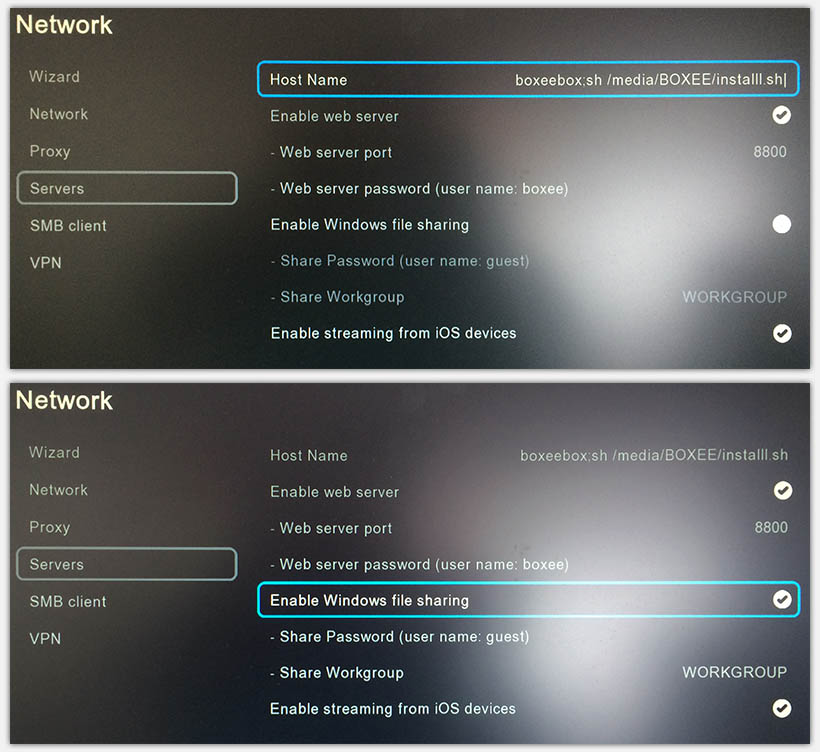
Boxee Box – Network Server settings
Step 7: Exit the “Servers” screen, which will make you Boxee Box logo turn red, install will begin and your Boxee Box reboots when done.
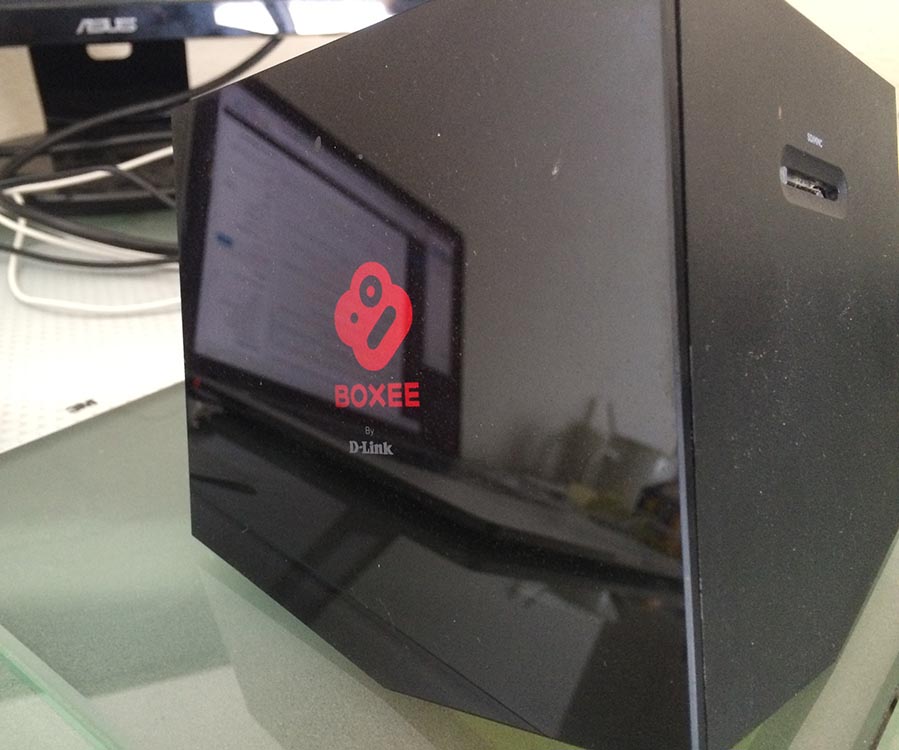
Boxee Box reboots with a Red Logo
Step 8: After restart verify if “Enable Windows File Sharing” is still checked in “Settings” “Network” “Servers‘. If not: check it an restart the Boxee Box.
Note : A succesful “hack” can be identified during boot where you will see “BOXEE HACKS+” on your screen briefly (instead of just “BOXEE”). The screensaver will show the same message.
Installing XBMC on Boxee Box
This is not a real installation – XBMC will run of your USB stick!
Before proceeding, shutdown your Boxee Box.
Next unzip the downloaded XBMC ZIP file and copy all the files in the folder named “xbmc” to the USB stick (SD-Card will work as well, but is not recommended for speed and heat reasons).
Note that this does not need to be the USB stick we just created for the BOXEE+HACK, you can create a clean USB stick if you’d like (again: 1 partition, MS-DOS FAT formatted).
After that, place the USB stick into your Boxee Box and boot it – you’ll see that it will boot straight into XBMC.
Performance was pretty good, even at 1080p with 5.1 Audio and subtitles.
However, with videos like that, using fast forward or skipping forward did cause the sound go out of sync.
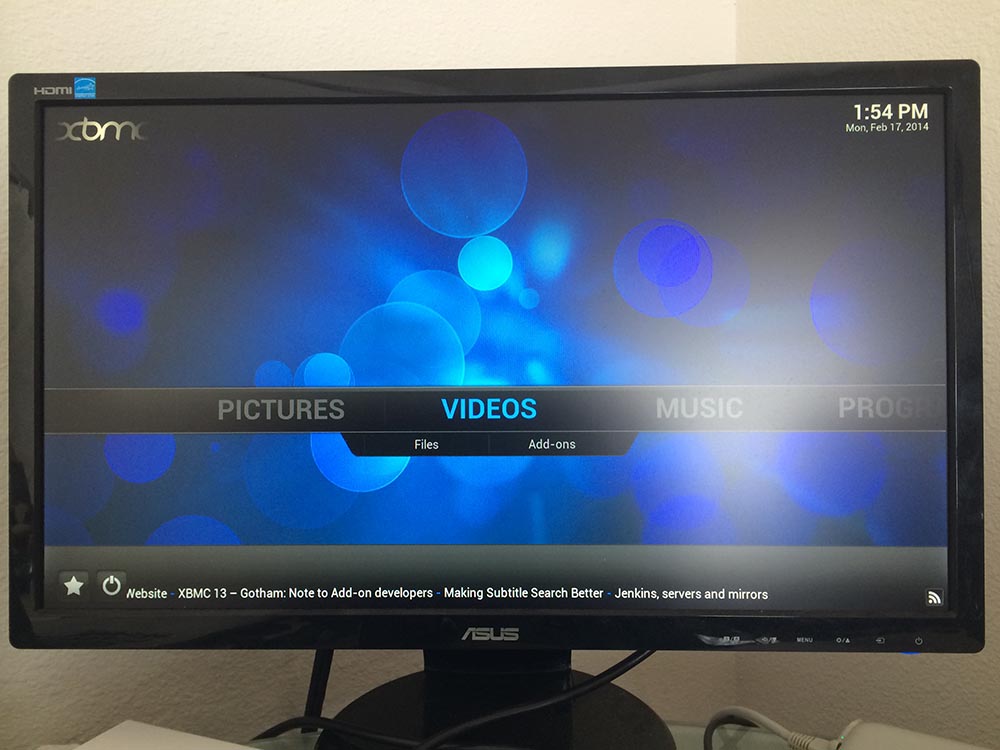
Boxee Box – Running XBMC
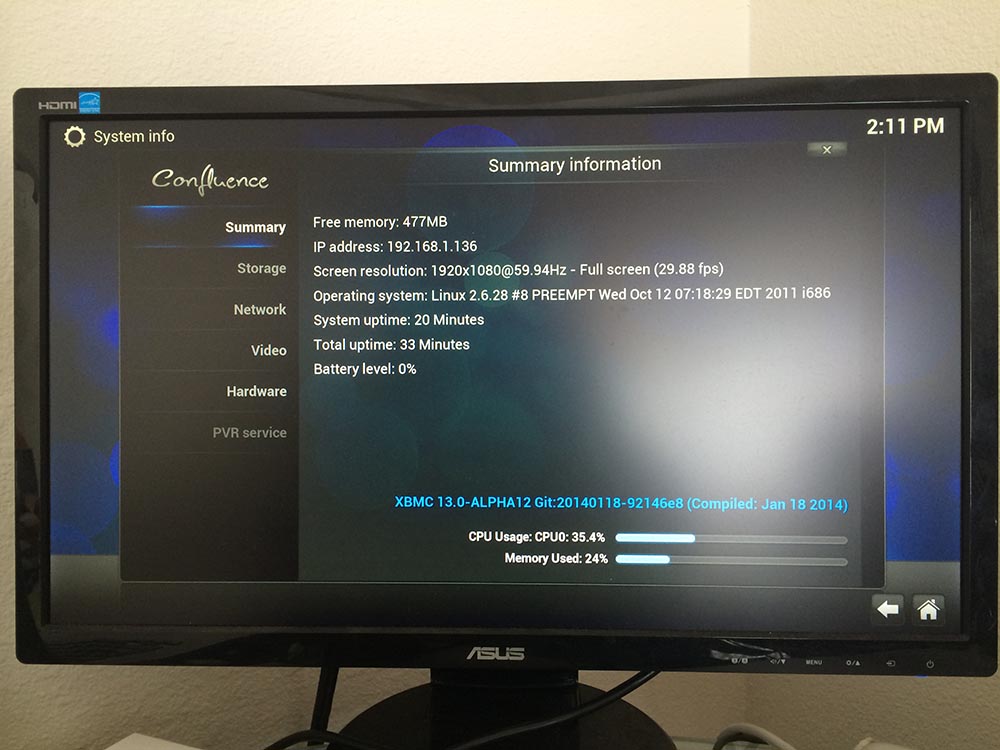
Boxee Box – XBMC – System Info Summary
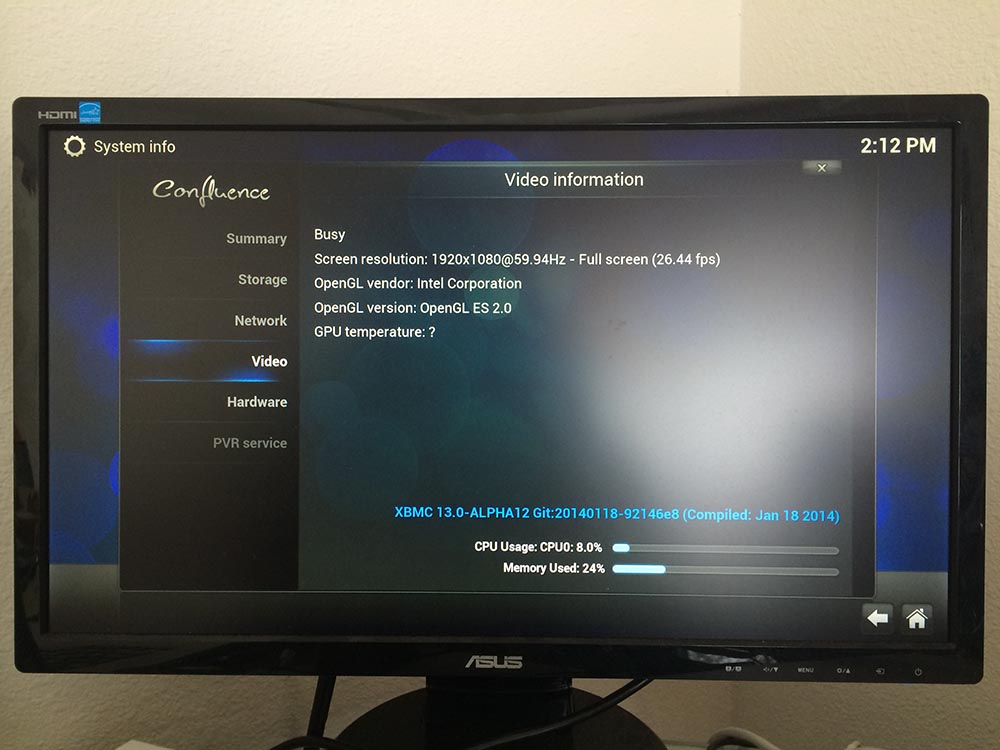
Boxee Box – XBMC – System Info Video
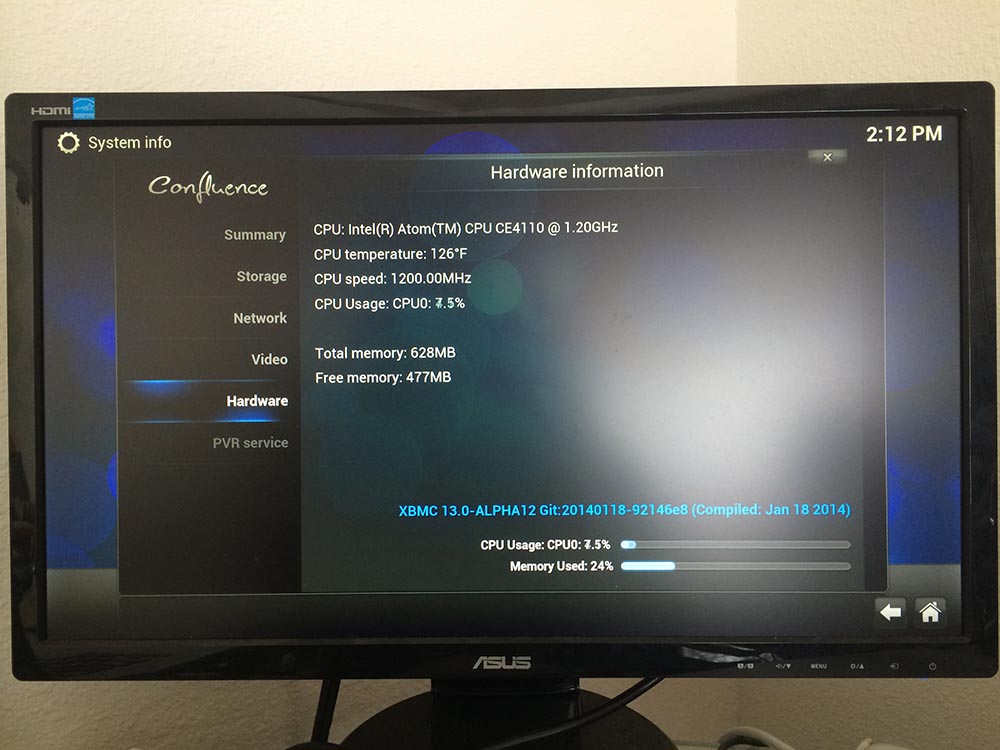
Boxee Box – XBMC – System Info Hardware (CPU)
Uninstalling XBMC from your Boxee Box
Uninstalling is easy,… simply shutdown your Boxee Box and remove the USB stick with the XBMC files on it.
Multiple XBMC Boxes and how to sync settings …
You might have multiple XBMC Boxes in your home, and you might share files through a NAS or other file server, and you might even use MySQL to keep your rooms in sync.
The easiest way to keep your settings the same on all XBMC boxes is by copying the following userdata files:
advancedsettings.xml
passwords.xml
sources.xml
These files need to be copied to the network share of your Boxee Box.
After I copied these files from my OpenElec XBMC boxes (network share: //<youropenelecbox>/userdata ), database and shares worked right away. The only annoying thing was that when going to for example TV Shows for the first time, the usual “intro” text was displayed. Just press the “left” button and pretend you didn’t see it. Everything worked fine right after that.
If your Boxee Box network name was “boxee” then you’ll find the data directory here:
//boxee/portable_data/userdata
Shared MySQL Database
This binary of XBMC does support the use of a shared MySQL database.
When using a MySQL Database, shared by multiple XBMC boxes, then please keep in mind that your Boxee Box XBMC will start slow the first time. It’s also important to make sure that all XBMC boxes, that use the MySQL database, are of the same version, otherwise keeping track of what you’ve watched will not sync properly between XBMC boxes.
Tip : At the time I’m writing this article, the XBMC binary seems compatible (database wise) with OpenElec 2.x.