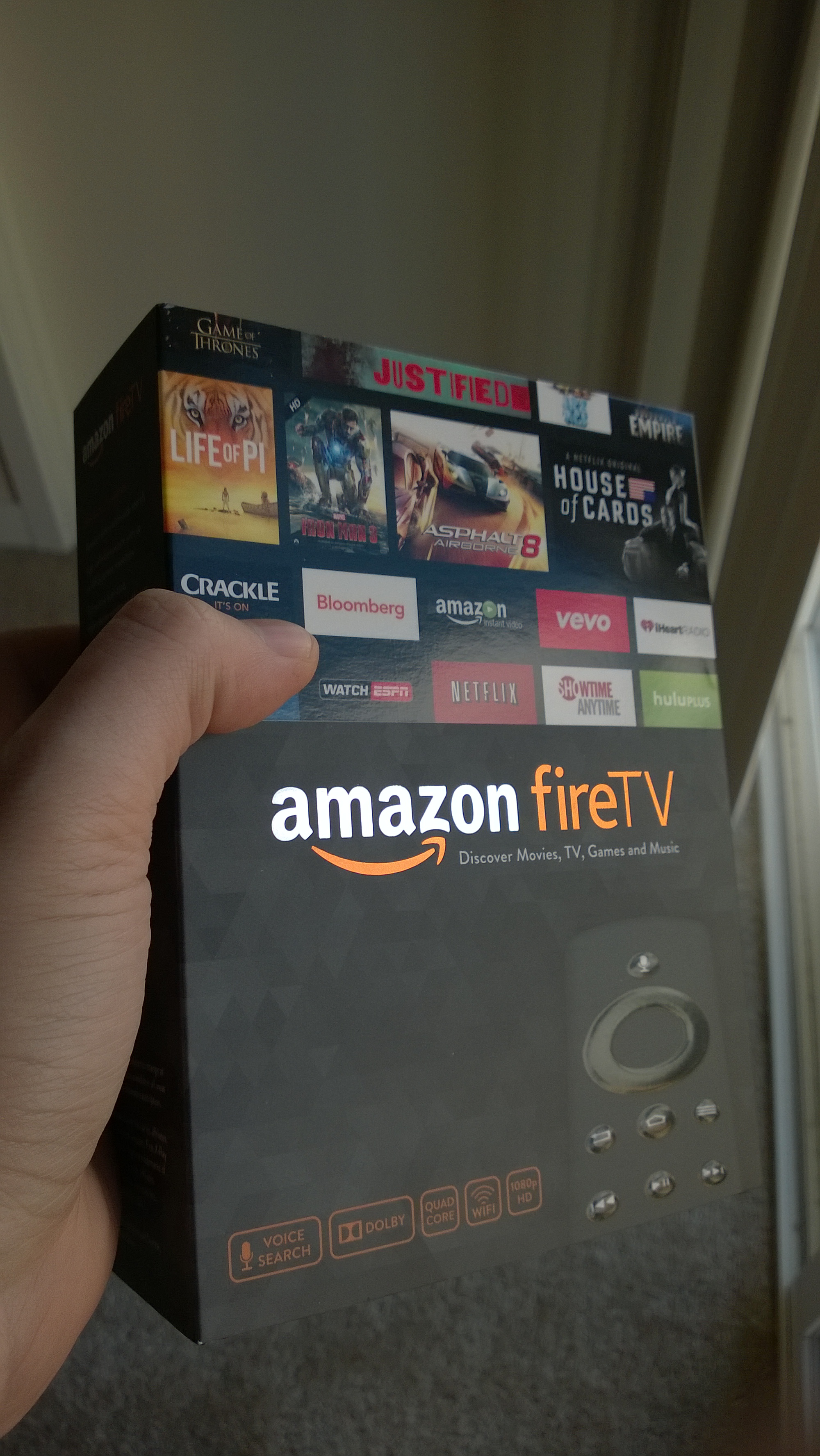
With the release of the Amazon FireTV, AppleTV and TheVerge posts around AndroidTV, the 99$er TV set-top box war is getting into high gear. Let’s take a step back though. The FireTV sports a 2GB RAM, dedicated GPU, quad core Qualcomm CPU and a full-size USB port for 99$. This is a fantastic low-end PC that I’ll gladly install WinRT / Ubuntu on if it’s possible, but in the meanwhile, here’s a step-by-step tutorial to install XBMC on the FireTV.
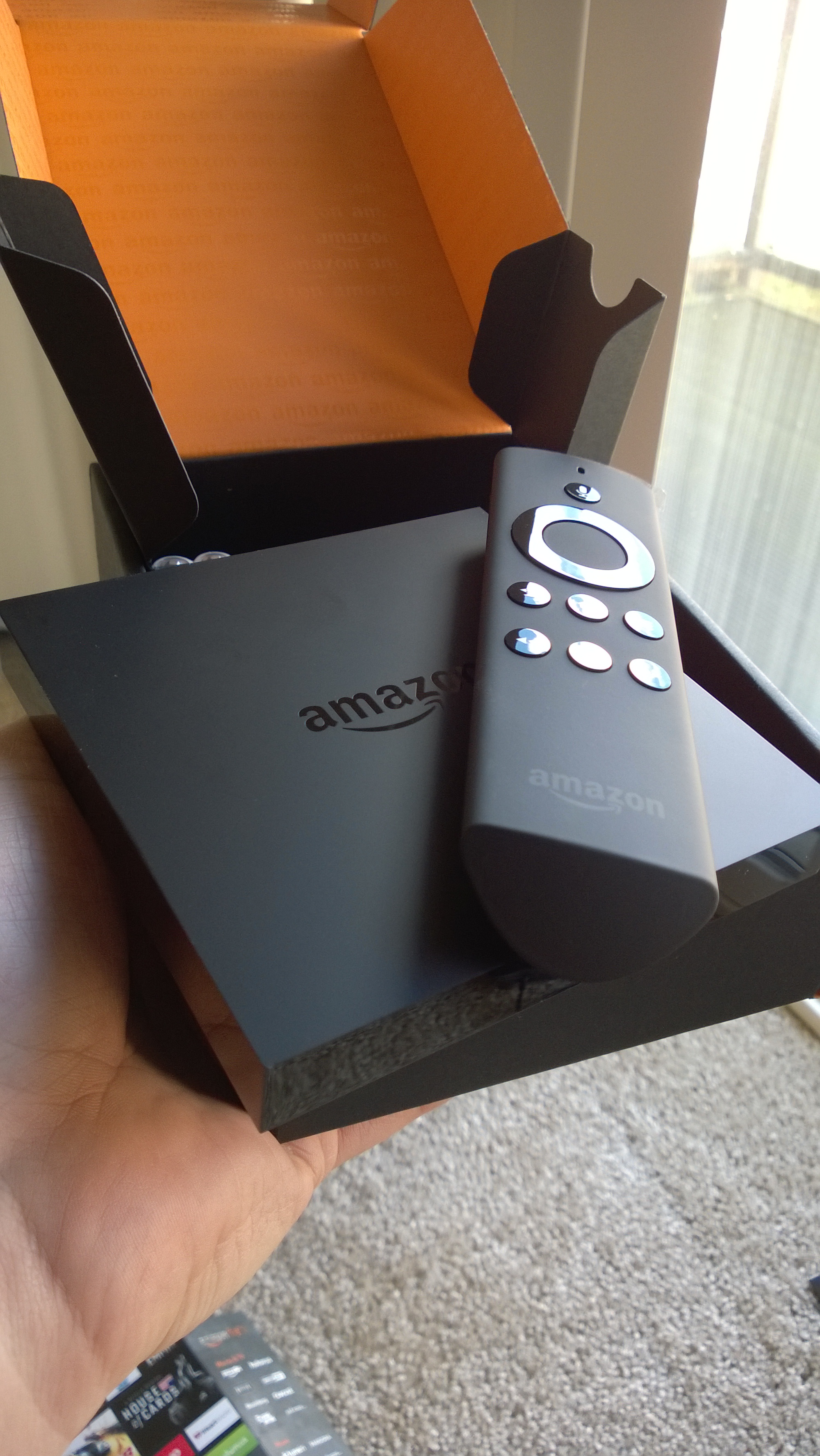
Enabling Debug Mode
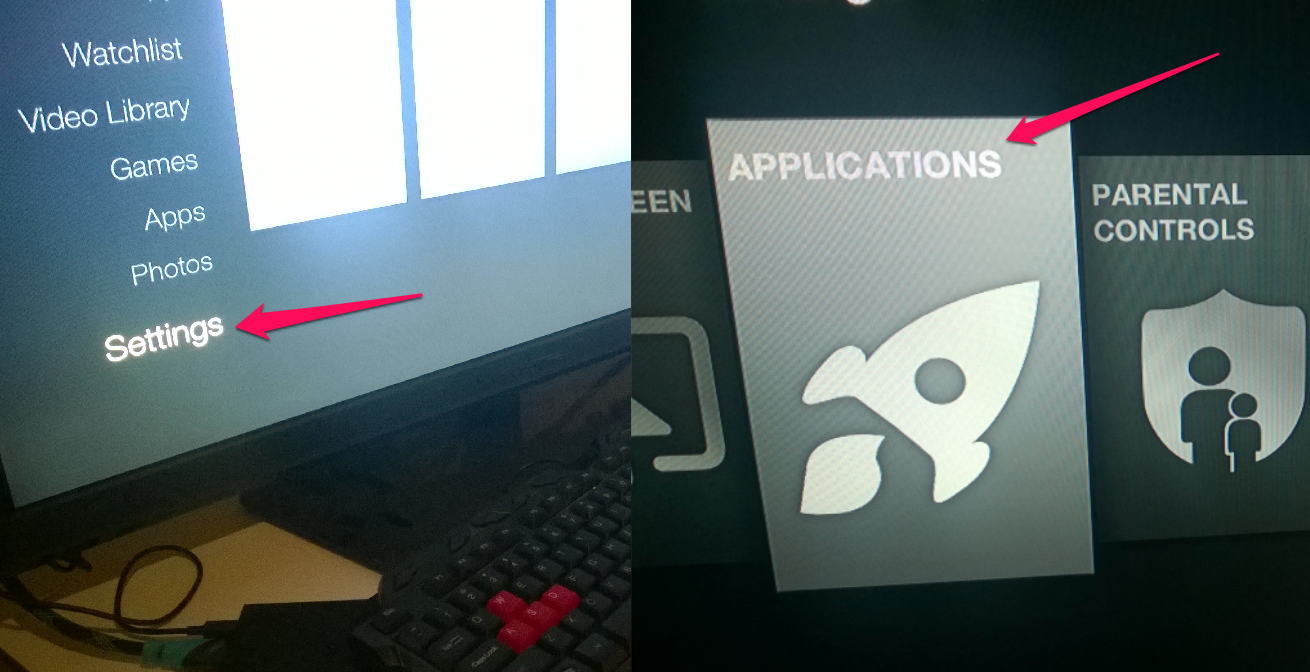
On the Amazon FireTV, go to:
- Settings
- System
- Developer Options
- ADB debugging
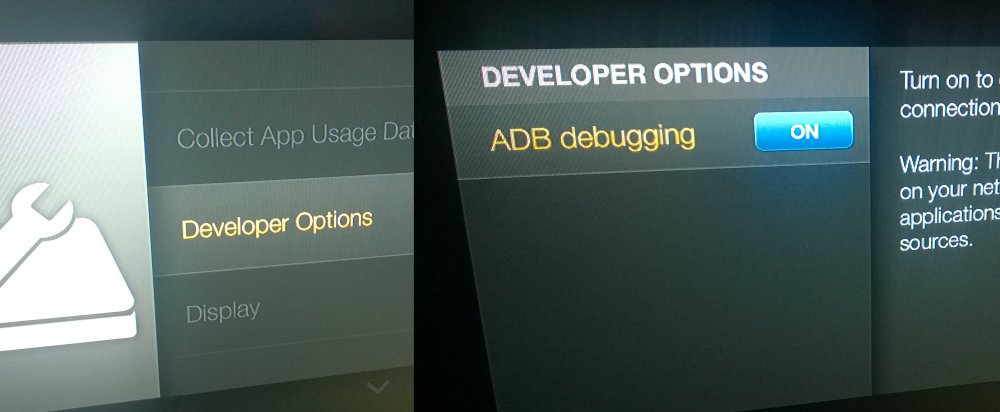
Turn ADB debugging on Now get your FireTV IP address by going to:
- Settings
- System
- About
- Network
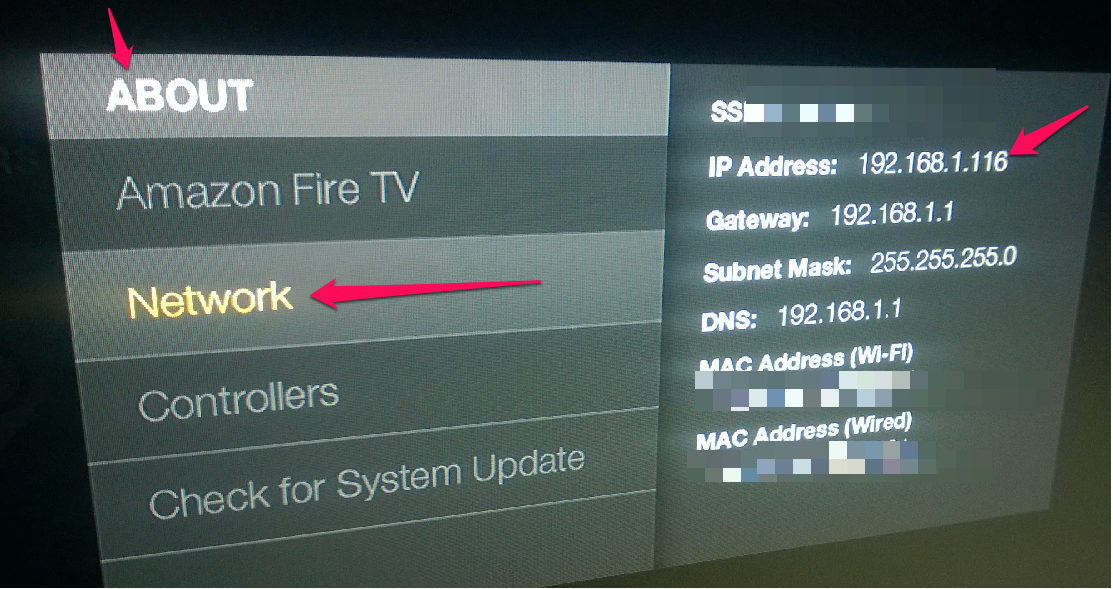
Write down your IP address
Getting the Android Developer Tools (ADT)
Get the Android developer tools and install the appropriate SDK for your machine. In my case, I got the x64 Windows bundle.
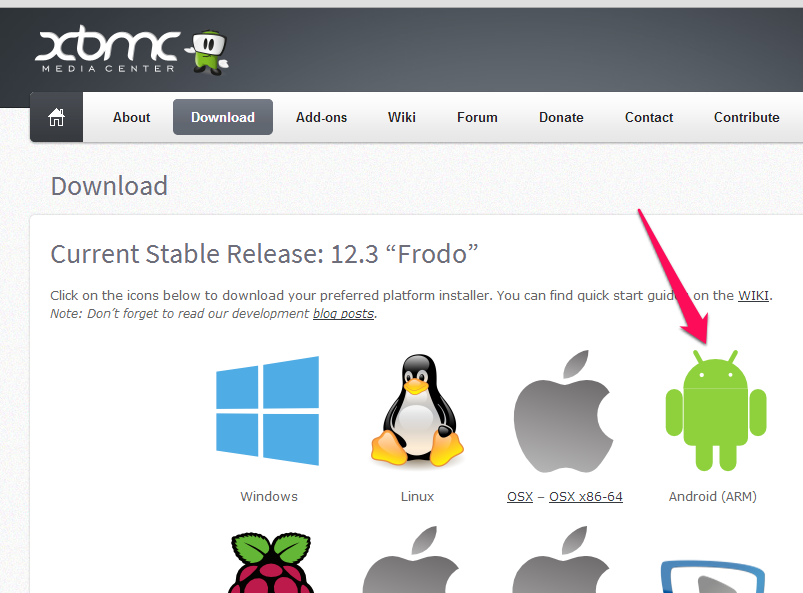
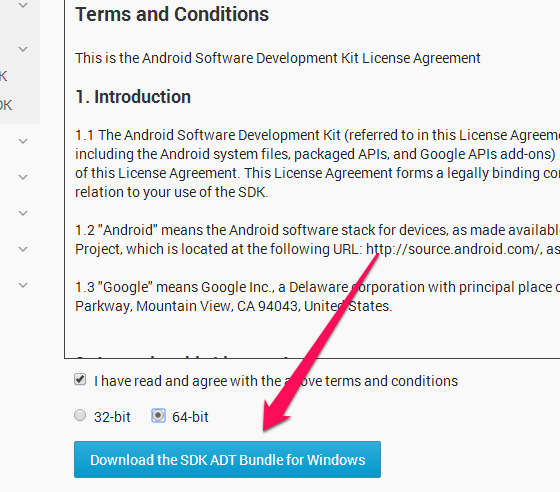
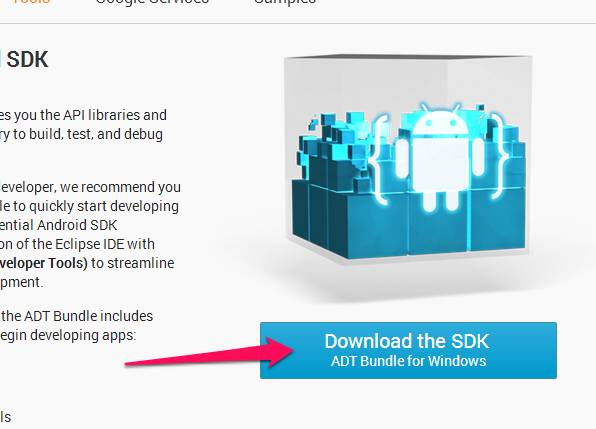
Extract the files and open the folder “sdkplatform-tools” folder.
Getting the XBMC APK for Android
Visit xbmc.org and download the Android flavor of XBMC. Save the APK file into the same “sdkplatform-tools” folder UPDATE: Consider getting SPMC (XBMC on Ouya Fork), runs better on the fireTV.
Installing XBMC on FireTV
Open a console window in the “sdkplatform-tools” folder and run the following commands:
- adb kill-server
- adb start-server
- adb connect 192.168.1.116 (replace with the FireTV IP you’ve written on the side)
- adb.exe install xbmc-12.3-Frodo-armeabi-v7a.apk (or spmc-armeabi-v7a_12.3.3.apk / other version you’ve downloaded)
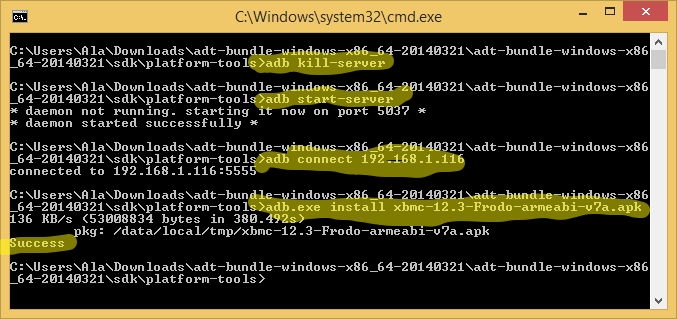
If those steps pass successfully, you’ll now be able to access XBMC on your FireTV
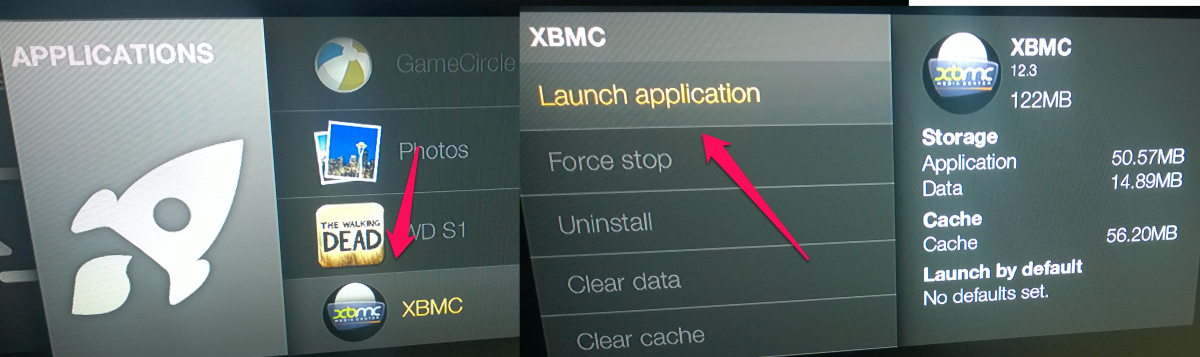
Back on your FireTV, navigate to the XBMC app:
- Settings
- Applications
- XBMC
- Launch application
Content
At this point, it’s XBMC all the way. The fastest way I found to pass some content in was using Serviio to set up a UPnP server on Windows, but consider using any approach you’d like to set things up.
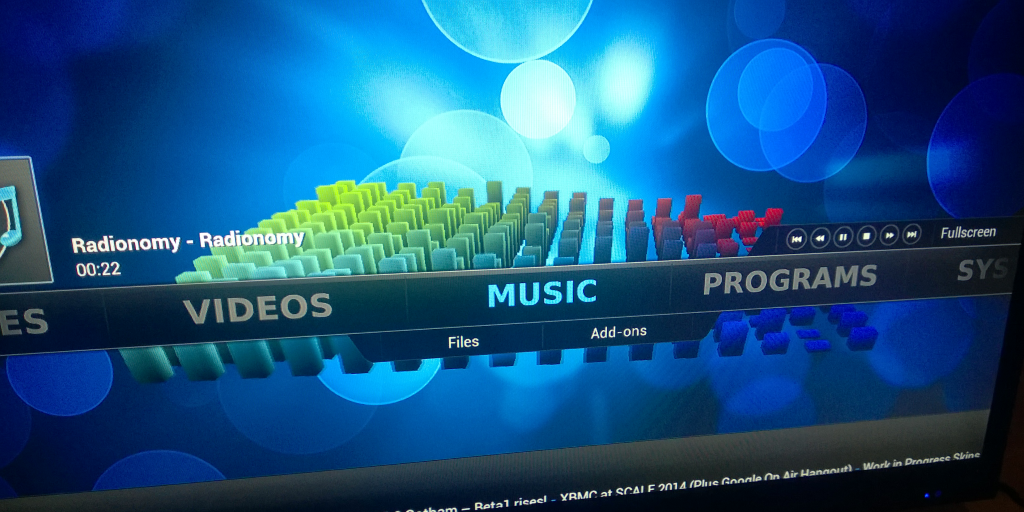
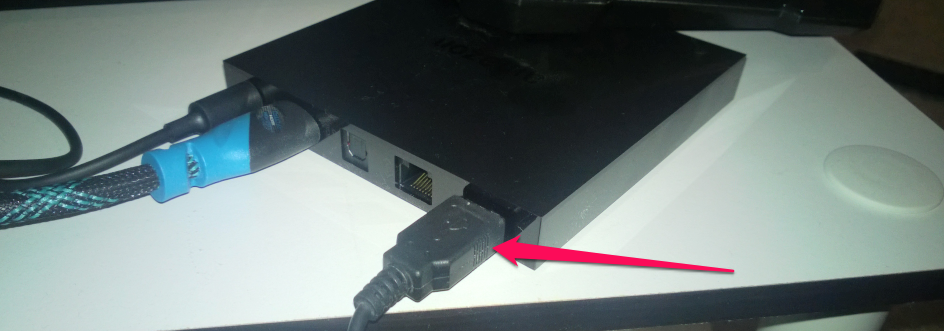
Note: You can use a USB keyboard very easily for inputting text - it seems there are XBMC glitches when it comes to text input using the remote.
Finishing Touches
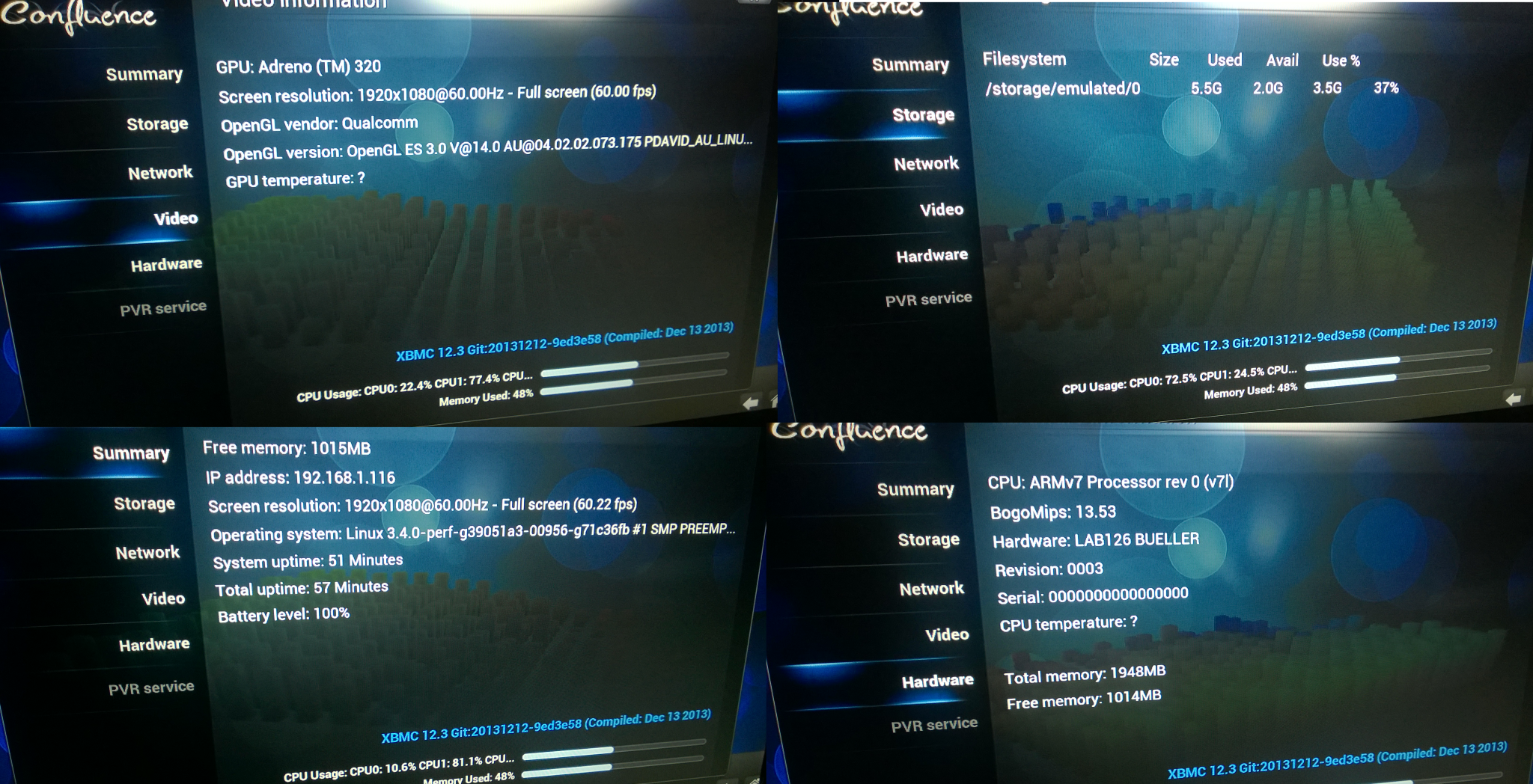
Here are a few screenshots from XBMC’s hardware reports: