The Hard Way
To illustrate the power of EasyCrop, consider the following scenario.
You wish to crop and scale down a photo to send in an email, and you want the file size to be under 50 KB. With a full-featured graphics application, these are the steps you would take:
- Launch the app, and watch the app icon bounce and bounce and bounce ...
- Navigate clumsy file dialogs to reach the file you wish to open.
- Crop the image and scale the result.
- Export the result to a temporary JPEG file.
- Check file size; if it's too big, back up two steps or try a different JPEG Quality setting.
- Open the folder containing the temporary file in the Finder.
- Drag the file into the email you are composing.
- Finally, delete the temporary file now that you no longer need it.
The EasyCrop Way
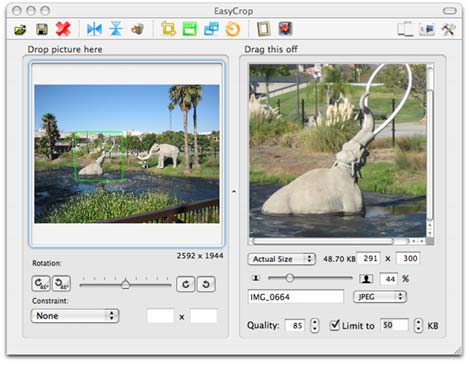
Highlights
- Consumes little resource and launches quickly
- No confusing file dialog
- No temporary files to erase
- Live preview
- Customizable constraint settings
- Built-in screen capture tool
- Full drag-and-drop support (e.g. drag image directly from Safari to EasyCrop)
- Originals remain intact
EasyCrop is a small app that launches in no time. And since it takes up little resources and is so useful, most users just keep it running all the time.
To perform the above task, simply drag the photo into EasyCrop. Then select the area you wish to crop and resize using a slider.
Some Usage Ideas
- Blog
- Add a face to your Address Book contact
- Set up pictures for your Mac OS X logon screen
- Convert image file format
- Take screenshots with built-in screen capture tool
When you're happy with what you see in the live preview, enter the file size limit and drag the preview image straight to the email you are composing.
That's it.
Download your copy today and try it out for yourself. Chances are that you will, like many others, find yourself using it more than you ever imagined.