Access Token URI: https://[YOUR HOME ASSISTANT URL][:PORT]/auth/token
Although it is possible to assign a different port, it is preferable to use port 443, so in that case make sure your firewall/proxy is forwarding via port 443.
Read more from the Alexa developer documentation about requirements for account linking.
Note
Despite the Alexa documentation’s disclaimer, however, Let’s Encrypt certificates are still accepted.
Important
You must use a valid/trusted SSL certificate for account linking to work. Self signed certificates will not work, but you can use a free Let’s Encrypt certificate.
-
Client ID:-
https://pitangui.amazon.com/if you are in US or BR -
https://layla.amazon.com/if you are in EU -
https://alexa.amazon.co.jp/if you are in JP and AU (not verified yet)The trailing slash is important here.
-
-
Client Secret: input anything you like, Home Assistant does not check this field -
Your Authentication Scheme: make sure you selected Credentials in request body. Home Assistant does not support HTTP Basic. -
Scope: Click+ Add scopeand inputsmart_home, Home Assistant is not using it yet, we may use it in the future when we allow more fine-grained access control. -
You can leave
Domain ListandDefault Access Token Expiration Timeas empty.

- Click
Savebutton in the top right corner. - Next, you will use the Alexa Mobile App to link your account.
- In the Alexa app, navigate to
More->Skills & Games->Your Skills->Dev - Click the Smart Home skill you just created.
- Click
Enable to use. - A new window will open to direct you to your Home Assistant’s login screen.
- After you successfully login, you will be redirected back to the Alexa app.
- Alexa should automatically start discovering your devices now! This is indicated by a blue ring on your physical devices
- If not, ask Alexa to
Discover Devices
- In the Alexa app, navigate to
- Now, you can ask Alexa from your Echo or the Alexa App, “Alexa, turn on bedroom light” 🎉
Alexa Smart Home Integration Configuration
Example configuration:
alexa:
  smart_home:
    locale: en-US
    endpoint: https://api.amazonalexa.com/v3/events
    client_id: YOUR_SKILL_CLIENT_ID
    client_secret: YOUR_SKILL_CLIENT_SECRET
    filter:
      include_entities:
        - light.kitchen
        - light.kitchen_left
      include_entity_globs:
        - binary_sensor.*_motion
      include_domains:
        - switch
      exclude_entities:
        - switch.outside
    entity_config:
      light.kitchen:
        name: "Custom Name for Alexa"
        description: "The light in the kitchen"
      switch.stairs:
        display_categories: LIGHT
YAML
Configuration Variables
Alexa configuration
Alexa Smart Home configuration
locale string (Optional, default: en-US)
The locale of your Alexa devices. Supported locales are de-DE, en-AU, en-CA, en-GB, en-IN, en-US, es-ES, es-MX, es-US,fr-CA, fr-FR, hi-IN, it-IT, ja-JP, nl-NL, and pt-BR. See Alexa Locale for additional information.
To enable proactive events, you send a message to the Alexa event gateway, send it to the event endpoint that aligns with the geographic availability of your smart home skill. Following is the list of endpoints and the regions they cover. See Proactive Events for more information.
- North America:
https://api.amazonalexa.com/v3/events - Europe:
https://api.eu.amazonalexa.com/v3/events - Far East:
https://api.fe.amazonalexa.com/v3/events
Filter domains and entities for Alexa. (Configure Filter)
Configuration for specific entities. All subordinate keys are the corresponding entity ids or the domains, e.g., alarm_control_panel.woowoo.
Additional options for specific entities.
display_categories string (Optional)
Display category and iconography each entity is shown in the Alexa app. Separate each category with a comma. First category is primary. e.g., MUSIC_SYSTEM,STREAMING_DEVICE,SPEAKER. See Alexa Display Categories for a list of available categories.
Alexa locale
The locale should match the location and language used for your Amazon echo devices.
The supported locales are:
de-DEen-AUen-CAen-GBen-INen-USes-ESes-MXes-USfr-CAfr-FRhi-INit-ITja-JPnl-NLpt-BR
See List of Capability Interfaces and Supported Locales.
Proactive events
The endpoint, client_id and client_secret are optional, and are only required if you want to enable Alexa’s proactive mode (i.e., “Send Alexa Events” enabled). Please note the following if you want to enable proactive mode:
- There are different endpoint URLs, depending on the region of your skill. Please check the available endpoints at https://developer.amazon.com/docs/smarthome/send-events.html#endpoints
- The
client_idandclient_secretare not the ones used by the skill that have been set up using “Login with Amazon” (in the Alexa Developer Console: Build > Account Linking), but rather from the “Alexa Skill Messaging” (in the Alexa Developer Console: Build > Permissions > Alexa Skill Messaging). To get them, you need to enable the “Send Alexa Events” permission. - If the “Send Alexa Events” permission was not enabled previously, you need to unlink and relink the skill using the Alexa App, or else Home Assistant will show the following error: “Token invalid and no refresh token available. Also, you need to restart your Home Assistant after each disabling/enabling the skill in Alexa.”
Configure filter
By default, no entity will be excluded. To limit which entities are being exposed to Alexa, you can use the filter parameter. Keep in mind that only supported platforms can be added.
# Example filter to include specified domains and exclude specified entities
alexa:
  smart_home:
    filter:
      include_domains:
        - alarm_control_panel
        - light
      include_entity_globs:
        - binary_sensor.*_occupancy
      exclude_entities:
        - light.kitchen_light
YAML
Filters are applied as follows:
- No filter
- All entities included
- Only includes
- Entity listed in entities include: include
- Otherwise, entity matches domain include: include
- Otherwise, entity matches glob include: include
- Otherwise: exclude
- Only excludes
- Entity listed in exclude: exclude
- Otherwise, entity matches domain exclude: exclude
- Otherwise, entity matches glob exclude: exclude
- Otherwise: include
- Domain and/or glob includes (may also have excludes)
- Entity listed in entities include: include
- Otherwise, entity listed in entities exclude: exclude
- Otherwise, entity matches glob include: include
- Otherwise, entity matches glob exclude: exclude
- Otherwise, entity matches domain include: include
- Otherwise: exclude
- Domain and/or glob excludes (no domain and/or glob includes)
- Entity listed in entities include: include
- Otherwise, entity listed in exclude: exclude
- Otherwise, entity matches glob exclude: exclude
- Otherwise, entity matches domain exclude: exclude
- Otherwise: include
- No Domain and/or glob includes or excludes
- Entity listed in entities include: include
- Otherwise: exclude
The following characters can be used in entity globs:
* - The asterisk represents zero, one, or multiple characters
? - The question mark represents zero or one character
See the troubleshooting if you’re experiencing issues setting up the integration.
Alexa Display Categories
Configure a display category to override the display category and iconography each entity is shown in the Alexa app. This makes it easier to find and monitor devices.
light.kitchen_light:
  display_categories: LIGHT,SWITCH
YAML
Note
Devices such as cameras, garage doors, and alarm control panels require specific display categories to provide all available features from Amazon Alexa. Overriding the default display category will limit features provided by Amazon Alexa.
See Alexa Display Categories for a complete list
Supported platforms
Home Assistant supports the following integrations through Alexa using a Smart Home Skill. For Home Assistant Cloud Users, documentation can be found here.
The following paragraphs explain the features of the platforms that are currently supported.
Alarm control panel
Arm and disarm Alarm control panel entities. Ask Alexa for the state of the alarm control panel entity.
- “Alexa, arm my home in away mode.”
- “Alexa, arm my home.”
- “Alexa, disarm my home.”
- “Alexa, is my home armed?”
Arming
The alarm control panel state must be in the disarmed state before arming. Alexa does not support switching from an armed state without first disarming, e.g., switching from armed_home to armed_night.
The alarm control panel state armed_custom_bypass isn’t supported by Alexa and is treated as armed_home.
Note
Alexa does not support arming with voice PIN at this time. Therefore if the alarm control panel requires a code for arming or the code_arm_required attribute is true, the entity will not be exposed during discovery.
The alarm control panel may default the code_arm_required attribute to true even if the platform does not support or require it. Use the entity customization tool to override code_arm_required to false and expose the alarm control panel during discovery.
Disarming
Users must opt-in to the disarm by voice feature in the Alexa App. Alexa will require a 4 digit voice personal identification number (PIN) for disarming. Configure a 4 digit PIN in the Alexa app, or use an existing 4 digit PIN code configured for the alarm control panel.
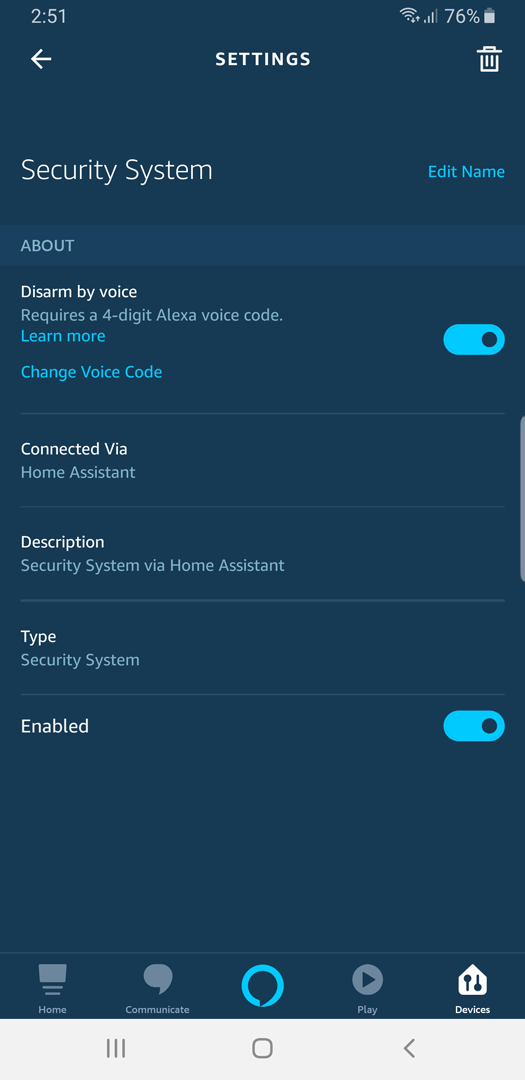
To use the existing code configured for the alarm control panel the code must be 4 digits and the code_format attribute must be number. After discovery, the Alexa app will offer the ability to use the existing code, or create an additional 4 digit PIN to use with Alexa.
The existing code is never communicated to Alexa from Home Assistant. During disarming, Alexa will ask for a PIN. The PIN spoken to Alexa is relayed to Home Assistant and passed to the alarm_control_panel.alarm_disarm action. If the alarm_control_panel.alarm_disarm action fails for any reason, it is assumed the PIN was incorrect and reported to Alexa as an invalid PIN.
Alert, Automation, Group
Turn on and off Alert, Automation, and Group entities as switches.
- “Alexa, turn on the front door alert.”
- “Alexa, turn off energy saving automations.”
- “Alexa, Downstairs to on.”
Binary sensor
Requires Proactive Events enabled.
Binary Sensors with a device_class attribute of door garage_door opening window motion presense are supported.
device_class |
Alexa Sensor Type |
|---|---|
door |
Contact |
garage_door |
Contact |
opening |
Contact |
window |
Contact |
motion |
Motion |
presense |
Motion |
Ask Alexa for the state of a contact sensor.
- “Alexa, is the bedroom window open?”
Routines
Requires Proactive Events enabled.
Alexa Routines can be triggered with Binary Sensors exposed as contact or motion sensors.
Use the Entity Customization Tool to override the device_class attribute to expose a binary_sensor to Alexa.
Button, Input Button
Activate Buttons and Input Buttons with the button name, or “turn on” utterance. They will appear in the Alexa app as scenes.
- “Alexa, Ring Phone.”
- “Alexa, turn on Ring Phone.”
Routines
Requires Proactive Events enabled.
Alexa Routines can be triggered when Buttons and Input Buttons are pressed.
In order to enable this, buttons will appear to have “presence detection” capability. This is what allows this functionality since Alexa does not support button type devices. To trigger a routine when a button is pressed, select the button in the when menu and then select the “Person” capability.
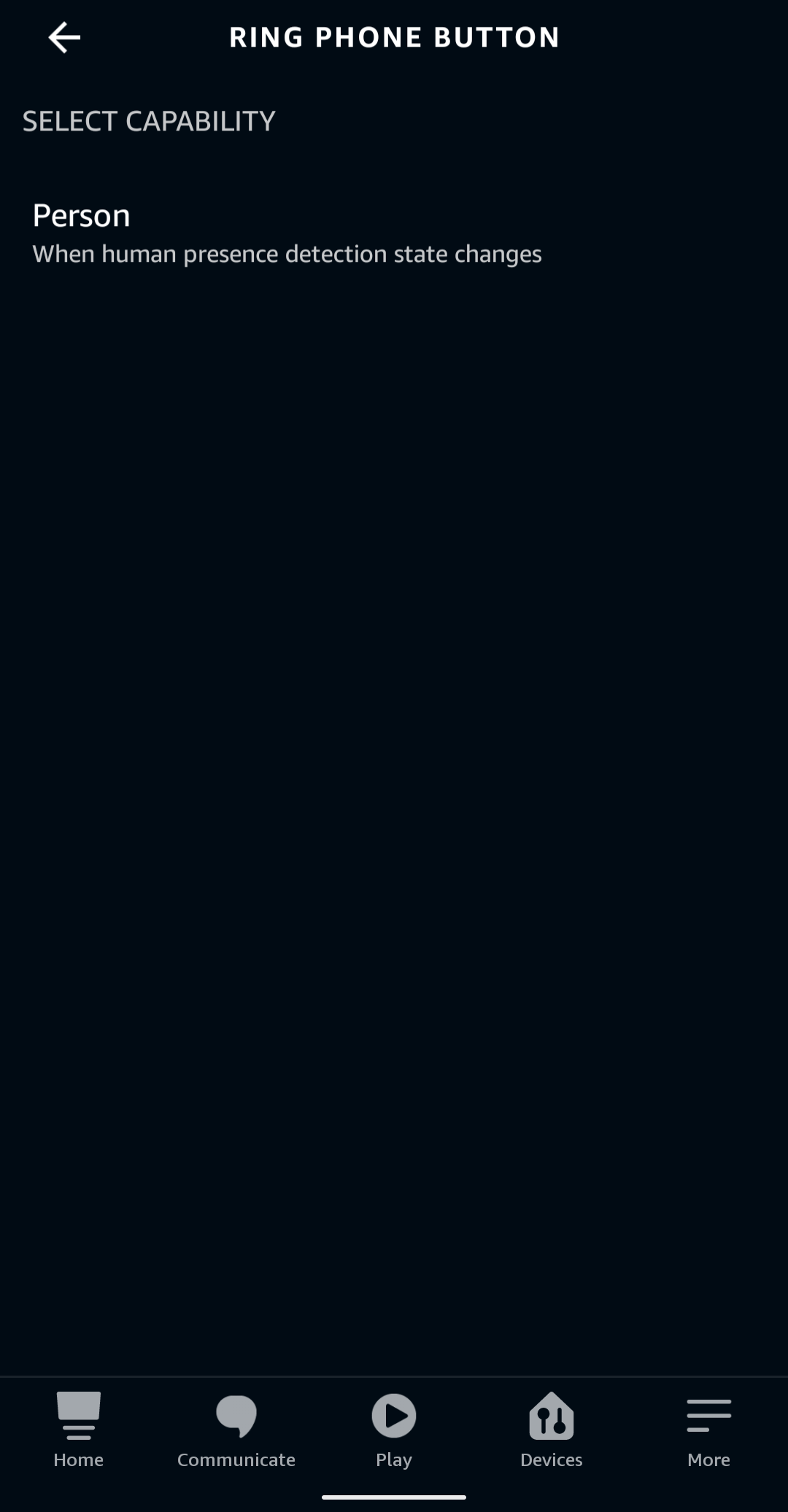
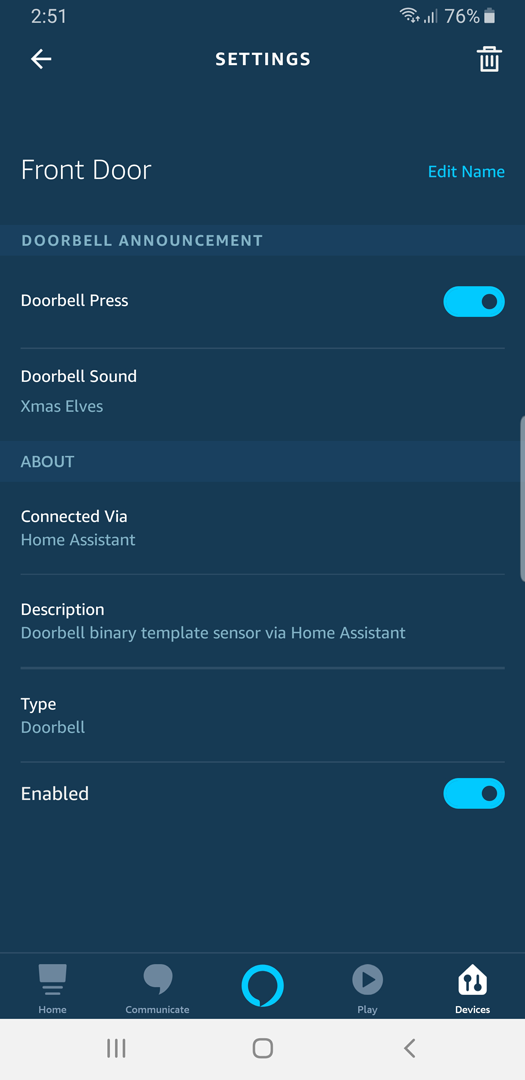
Doorbell announcement with binary_sensor
Requires Proactive Events enabled.
Note that Home Assistant can support a doorbell natively with an event entity with device_class to doorbell
Configure a binary_sensor with display_category of DOORBELL in the entity_config to gain access to the doorbell notification settings in the Alexa App. Note that Home Assistant can support this natively with an event entity.
alexa:
  smart_home:
    entity_config:
      binary_sensor.alexa_doorbell:
        name: "Front Door"
        description: "Doorbell Binary Sensor"
        display_categories: DOORBELL
YAML
Alexa will announce on all echo devices “Someone is at the [entity name]” when a binary_sensor state changes from off to on.
See also Event entities.
Presence Detection with Binary Sensor
Requires Proactive Events enabled.
Configure a binary_sensor that has a device_class attribute of motion or presence and configure display_category to CAMERA in the entity_config to gain access the presence detected notification settings in the Alexa App.
alexa:
  smart_home:
    entity_config:
      binary_sensor.driveway_presence:
        name: "Driveway"
        description: "Driveway Presence Sensor"
        display_categories: CAMERA
YAML
Alexa will announce on all echo devices “Person detected at [entity name]”.
Important
Each Echo device will need the communication and Announcements setting enabled, and the Do Not Disturb feature turned off.
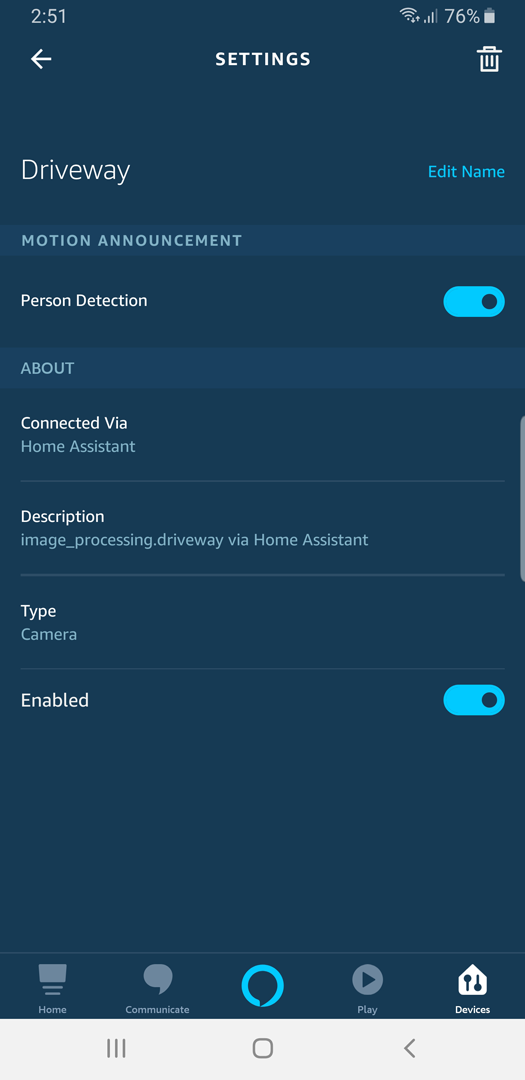
Image Processing entities also support this notification.
Camera
View a camera stream on an Amazon echo device.
- “Alexa, show the front door camera.”
The stream integration is required to stream cameras to Amazon echo devices.
The Amazon echo device will request the camera stream from Home Assistant. The Home Assistant URL must be accessible from the network the Amazon echo device is connected to and must support HTTPS on port 443 with a certificate signed by an Amazon approved certificate authority. These requirements can be satisfied with Home Assistant Cloud, or LetsEncrypt/DuckDNS.
Enable preload stream option for cameras used with echo devices to reduce response time, and prevent timing out before the 6 second limit.
Climate
Single, double, and triple set-point thermostats are supported. The temperature value from the thermostat will also be exposed at a separate temperature sensor.
Set Thermostat Temperature
- “Alexa, set thermostat to 20.”
- “Alexa, set the AC to 75.”
- “Alexa, make it warmer in here.”
- “Alexa, make it cooler in here.”
Thermostat Mode
-
“Alexa, set living room thermostat to automatic.”
-
DRYis shown in Alexa app asDEHUMIDIFY -
ECOis handled as apresetin Home Assistant, and will not display in the Alexa app. -
FAN_ONLYis not supported by the Alexa voice model and is shown asOFFin the Alexa App.
To change the thermostat mode, the exact utterance must be used:
- “Alexa, set [entity name] to [mode utterance].”
If the climate entity supports on/off, use “turn on” and “turn off” utterances with the entity name or the mode utterance.
- “Alexa, turn on the [mode utterance].”
- “Alexa, turn off the [entity name].”
Alexa supports the following utterances value for climate thermostat mode:
| HA Climate Mode | Alexa Mode Utterances |
|---|---|
AUTO |
“auto”, “automatic” |
COOL |
“cool”, “cooling” |
HEAT |
“heat”, “heating” |
ECO |
“eco”, “economical” |
DRY |
“dry”, “dehumidify” |
OFF |
“off” |
Cover
Covers should be configured with the appropriate device_class.
Covers with a device_class of blind, shade, curtin are shown as an Interior Blind in the Alexa App and Covers with a window, awning, or shutter will show as an Exterior Blind.
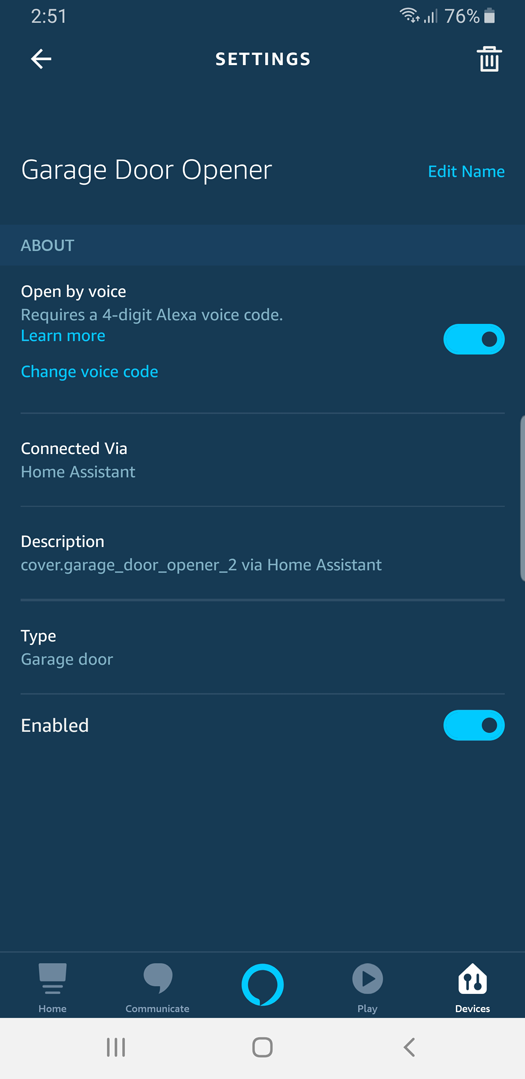
Covers with the device_class of garage are shown as a Garage Door and support the Open by Voice PIN feature.
Use the Entity Customization Tool to override the device_class attribute to correctly expose a cover to Alexa.
Open/Close/Raise/Lower
Home Assistant configures covers with semantics that provide “raise”, “lower”, “open”, “close” utterances for covers. In addition to semantics “turn on” / “turn off” utterances will also work.
- “Alexa, open the garage door.”
- “Alexa, close the curtain.”
- “Alexa, lower the shades.”
- “Alexa, raise the roof!”
Semantics are assigned based on the features supported by the cover. If the cover supports tilt functionality, the semantics “open” and “close” are assigned to the tilt functionality, and the semantics “raise” and “lower” are assigned to the position functionality.
If the cover does not support tilt, all semantics “raise”, “lower”, “open”, “close” are assigned to the position functionality.
Set Cover Position
Covers that support a set position can be controlled using percentages.
- “Alexa, set the [entity name] position to thirty percent.”
- “Alexa, increase [entity name] position by ten percent.”
- “Alexa, decrease [entity name] position by twenty percent.”
| Locale | Friendly Name Synonyms |
|---|---|
en-US |
“position”, “opening” |
Currently, Alexa only supports friendly name synonyms for the en-US locale.
Set Cover Tilt
Covers that support tilt position can be controlled using percentages.
- “Alexa, set the [entity name] tilt to thirty percent.”
- “Alexa, increase [entity name] tilt by ten percent.”
- “Alexa, decrease [entity name] tilt by twenty percent.”
| Locale | Friendly Name Synonyms |
|---|---|
en-US |
“tilt”, “angle”, “direction” |
Currently, Alexa only supports friendly name synonyms for the en-US locale.
Stop the Covers operation
To stop the covers operation, say:
- “Alexa, stop [entity name].”
If your cover supports the STOP feature, this will stop the cover operation.
If your cover supports the STOP_TILT feature, this will stop the cover tilt operation.
If both features are enabled, both the cover and the cover tilt will be stopped.
Garage doors
Covers with a device_class of garage support the Open by Voice PIN feature in the Alexa app. Configure a 4 digit PIN code to open the garage door in the Alexa app.
Event entities
Requires Proactive Events enabled.
Doorbell events
Home Assistant event entities can trigger a doorbell announcement in Alexa if the device_class of the event entity is set to doorbell.
Alexa will announce on all echo devices “Someone is at the [entity name]” when an event entity has received an updated.
Note
Each Amazon Echo device will need the communication and announcements setting enabled and the Do Not Disturb feature turned off.
Fan
Control fan speed, direction, and oscillation.
Fan speed
The fan device must support percentage based speeds with the percentage attribute.
- “Alexa, set the fan speed to three.”
- “Alexa, set the fan speed to fifty percent.”
- “Alexa, set the fan power level to fifty percent.”
- “Alexa, turn up the speed on the tower fan.”
- “Alexa, set the air speed on the tower fan to maximum.”
Fan Preset Mode
The fan device must support the preset_mode attribute.
- “Alexa, set the fan preset to eco.”
- “Alexa, set the fan preset to smart.”
- “Alexa, set the fan preset to auto.”
Currently, Alexa only supports en-US locale for preset modes.
Fan Direction
The fan device must support the direction attribute.
- “Alexa, set the fan direction to forward.”
- “Alexa, set the fan direction to reverse.”
Fan Oscillation
The fan device must support the oscillating attribute.
- “Alexa, is oscillate on for the tower fan?”
- “Alexa, turn on swivel for the tower fan.”
- “Alexa, turn on oscillation mode for the table fan.”
| Locale | Friendly Name Synonyms |
|---|---|
en-US |
“oscillate”, “swivel”, “oscillation”, “spin”, “back and forth” |
Currently, Alexa only supports friendly name synonyms for the en-US locale.
Humidifier
Control power, target humidity and mode.
Humidifier target humidity
- “Alexa, set the [entity name] humidity to fifty percent.”
Humidifier Mode
The humidifier device must support the mode attribute.
- “Alexa, set the [entity name] mode to eco.”
Image Processing
Requires Proactive Events enabled.
Presence Detection Notification
All image_processing entities support the presence detected notification settings in the Alexa App. Any state change will trigger the notification.
Alexa will announce on all echo devices “Person detected at [entity name]”.
Note
Display category will default to CAMERA to enable presence detected notification settings in the Alexa App. Each Echo device will need the communication and Announcements setting enabled, and the Do Not Disturbed feature turned off.
Input Number and Number
Control an input_number or number entity with Alexa. Configures Alexa with the min, max, step, and unit_of_measurement attributes for the entity.
- “Alexa, set [entity name] to forty five [unit of measurement].”
- “Alexa, increase the [entity name] by two.”
- “Alexa, set the [entity name] to maximum.”
The following table lists the possible friendly name synonyms available for a Input Number or Number with min: -90, max: 90, step: 45, unit_of_measurement: degrees.
| Fan Range | Friendly Name Synonyms |
|---|---|
| -90 | “negative ninety”, “minimum”, “min” |
| -45 | “negative forty five” |
| 0 | “zero” |
| 45 | “forty five” |
| 90 | “ninety”, “maximum”, “max” |
The unit_of_measurement will be used to select a supported unit label from the Global Alexa catalog. If there is no match it will be assigned a preset controller.
The following units are supported: °C, °F, K, m, km, mi, yd, in, kg, g, oz, lb, L, ft³, m³, gal and %
Light
Control lights with “turn on” and “turn off” utterances, adjust brightness, color, and temperature.
- “Alexa, turn on the bathroom light.”
- “Alexa, turn off the patio light.”
Brightness
Lights that support brightness can be adjusted with percentages ranging from 0 to 100 percent.
- “Alexa, set the bedroom light to fifty percent.”
- “Alexa, living room lights to one hundred percent.”
The “dim” utterance will decrease the brightness of a light 25 percentage points.
- “Alexa, dim the bathroom light.”
Color Temperature
Adjust lights that support color temperature using the following friendly names:
- “Alexa, set the dining room softer.”
- “Alexa, make the living room warmer.”
- “Alexa, set the dining room cooler.”
- “Alexa, make the living room light whiter.”
- “Alexa, make the living room warm white.”
- “Alexa, set the kitchen to daylight.”
The following table lists the possible friendly name synonyms available to lights that support color temperature.
| Color Temperature in Kelvin | Friendly Name Synonyms |
|---|---|
| 2200 | “warm”, “warm white” |
| 2700 | “incandescent”, “soft white” |
| 4000 | “white” |
| 5500 | “daylight”, “daylight white” |
| 7000 | “cool”, “cool white” |
Use “warmer”, “softer”, “cooler, “whiter” utterances to adjust color temperature by 50 mired (approximately 300-500 degree kelvin change).
- “Alexa, set the dining room softer.”
- “Alexa, make the living room warmer.”
- “Alexa, set the dining room cooler.”
- “Alexa, make the living room light whiter.”
Color
Set the light color using the CSS basic color keywords or extended color keywords as the friendly color name.
- “Alexa, set the front porch light to blue.”
- “Alexa, set the bedroom light to red.”
- “Alexa, change the kitchen to the color crimson.”
Lock
- “Alexa, lock my front door.”
- “Alexa, unlock the dungeon.”
Unlocking
To unlock, Alexa will require a 4 digit voice personal identification number (PIN) for unlocking. Configure a 4 digit PIN in the Alexa app to unlock locks.
Media Player
Change Channel
- “Alexa, change the channel to 200 on the Living Room TV.”
- “Alexa, change the channel to PBS on the TV.”
- “Alexa, next channel on the Living Room TV.”
- “Alexa, channel up on the TV.”
- “Alexa, channel down on the TV.”
Speaker Volume
- “Alexa, set the volume of the speakers to 50.”
- “Alexa, turn the volume down on the stereo by 20.”
- “Alexa, turn the volume down on Living Room TV.”
- “Alexa, mute speakers.”
- “Alexa, unmute speakers.”
- “Alexa, lower the volume on the stereo.”
- “Alexa, volume up 20 on the speakers.”
Equalizer Mode
Supports changing the Media Player sound_mode from the preset sound_mode_list.
- “Alexa, set mode to movie on the TV.”
Alexa only supports the following modes: movie, music, night, sport, tv.
Inputs
Supports changing the Media Player source from the preset source_list.
- “Alexa, change the input to DVD on the Living Room TV.”
Home Assistant will attempt to translate the media_player source_list into a valid source name for Alexa. Alexa only supports the following input names:
AUX 1, AUX 2, AUX 3, AUX 4, AUX 5, AUX 6, AUX 7, BLURAY, CABLE, CD, COAX 1, COAX 2, COMPOSITE 1, DVD, GAME, HD RADIO, HDMI 1, HDMI 2, HDMI 3, HDMI 4, HDMI 5, HDMI 6, HDMI 7, HDMI 8, HDMI 9, HDMI 10, HDMI ARC, INPUT 1, INPUT 2, INPUT 3, INPUT 4, INPUT 5, INPUT 6, INPUT 7, INPUT 8, INPUT 9, INPUT 10, IPOD, LINE 1, LINE 2, LINE 3, LINE 4, LINE 5, LINE 6, LINE 7, MEDIA PLAYER, OPTICAL 1, OPTICAL 2, PHONO, PLAYSTATION, PLAYSTATION 3, PLAYSTATION 4, SATELLITE, SMARTCAST, TUNER, TV, USB DAC, VIDEO 1, VIDEO 2, VIDEO 3, XBOX
Playback State
Requires Proactive Events enabled.
Note
Intents to seek forwards (skip) or to rewind (go back) are not supported at the moment.
Remote
Supports changing the Remote activity from the given activity_list
- “Alexa, change the TV to PlayStation.”
- “Alexa, change the input on the TV to PlayStation.”
Note
Alexa does not allow the following words to be used as activity names:
alarm, alarms, all alarms, away mode, bass, camera, date, date today, day, do not disturb, drop in, music, night light, notification, playing, sleep sounds, time, timer, today in music, treble, volume, way f. m.
Scene
Activate scenes with scene name, or “turn on” utterance. Home Assistant does not support deactivate or “turn off” for scenes at this time.
- “Alexa, Party Time.”
- “Alexa, turn on Party Time.”
Script
Run script with script name, or “turn on” utterance. Deactivate a running script with “turn off” utterance.
- “Alexa, Party Time.”
- “Alexa, turn on Party Time.”
- “Alexa, turn off Party Time.”
Sensor
Requires Proactive Events enabled.
Only temperature sensors are configured at this time.
- “Alexa, what’s the temperature in the kitchen?”
- “Alexa, what’s the upstairs temperature?”
Switch, Input Boolean
Support “turn on” and “turn off” utterances.
- “Alexa, turn on the vacuum.”
- “Alexa, turn off the lights.”
Routines
Requires Proactive Events enabled.
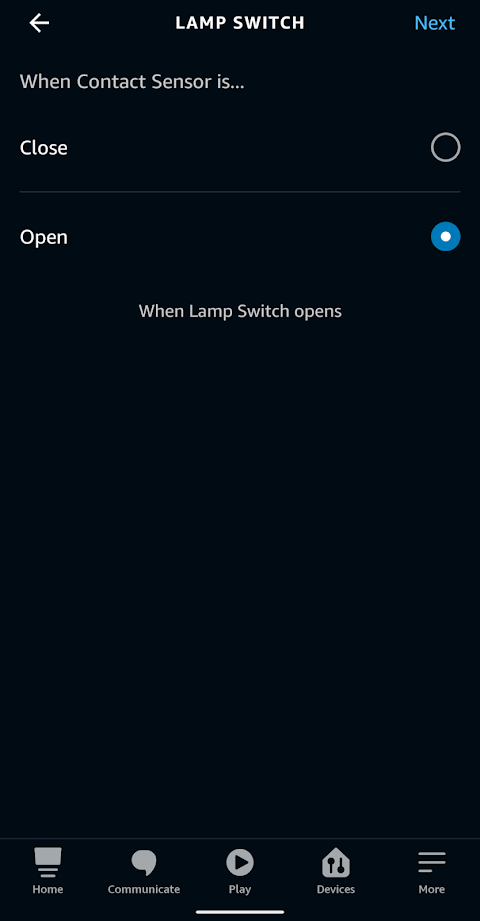
Alexa Routines can be triggered when Switches and Input Booleans change state.
In order to enable this, Switches and Input Booleans will appear as contact sensors in the when menu of Alexa Routines. This is because Alexa does not support triggering routines from switch-type devices, only from contact and motion sensors. In this menu when you select a switch, Open corresponds to on and Close corresponds to off.
Timer
Start a timer with using the “turn on” utterance.
- “Alexa, turn on the laundry.”
Cancel a timer using the “turn off” utterance.
- “Alexa, turn off the laundry.”
Pause and Restart Timer entities in Home Assistant.
- “Alexa, pause the microwave.”
- “Alexa, hold the sous vide.”
- “Alexa, restart the microwave.”
Important
To avoid issues with Alexa’s built-in timer functionality, the timer entity should not include the word “timer” in its friendly name.
Vacuum
Support “turn on” and “turn off” utterances. Pause and Resume
- “Alexa, turn on the vacuum.”
- “Alexa, pause the vacuum.”
- “Alexa, restart the vacuum.”
Valve
Valves are not supported natively within Alexa. So within Alexa, they are represented as a device of an unknown type.
Open/close
Home Assistant configures valves with semantics that provide “open” and “close” utterances.
- “Alexa, open the water valve.”
- “Alexa, close the gas valve.”
Set valve position
Valves that support a set position can be controlled using percentages.
- “Alexa, set the [entity name] position to thirty percent.”
- “Alexa, increase [entity name] position by ten percent.”
- “Alexa, decrease [entity name] position by twenty percent.”
| Locale | Friendly Name Synonyms |
|---|---|
en-US |
“position”, “opening” |
Currently, Alexa only supports friendly name synonyms for the en-US locale.
Stop the valve
Valves that support stop closing or opening will have an extra toggle control that allows to stop the valve closing or opening operation.
Water heater
Single, double, and triple set-point thermostats are supported. The temperature value from the thermostat will also be exposed at a separate temperature sensor.
Set target temperature
- “Alexa, set the boiler’s target temperature to 50.”
You can ask Alexa about the current temperature and current target temperature.
- “Alexa, what is the boiler’s target temperature?”
- “Alexa, what is the boiler’s current temperature?”
Operation Mode
The operation mode can be set from the UI. All Home Assistant operation modes can be set (English only).
- “Alexa, set main boiler to eco.”
To change the water heater’s mode, the exact utterance must be used:
- “Alexa, set [entity name] to [mode utterance].”
If the water heater entity supports on/off, use “turn on” and “turn off” utterances with the entity name or the mode utterance.
- “Alexa, turn on the [mode utterance].”
- “Alexa, turn off the [entity name].”
Troubleshooting
Binary Sensor not available in Routine Trigger
Binary Sensors with a device_class attribute of door garage_door opening window motion presense are supported.
Use the Entity Customization Tool to override the device_class attribute to expose a binary_sensor to Alexa.
Token Invalid and no Refresh Token Available
Disable and re-enable the skill using the Alexa App; then restart Home Assistant.
Debugging
The Alexa integration will log additional information about state updates and other messages when the log level is set to debug. Add the relevant line below to the configuration.yamlThe configuration.yaml file is the main configuration file for Home Assistant. It lists the integrations to be loaded and their specific configurations. In some cases, the configuration needs to be edited manually directly in the configuration.yaml file. Most integrations can be configured in the UI. [Learn more]:
If using Alexa with an Alexa Smart Home Skill and Lambda function such as haaska:
logger:
  default: info
  logs:
    homeassistant.components.alexa: debug
YAML
If using Home Assistant Cloud you also need to debug hass_nubucasa.iot:
logger:
  default: info
  logs:
    homeassistant.components.alexa: debug
    hass_nabucasa.iot: debug
YAML