Binge your shows, watch clips, and stream games effortlessly.
Enjoy high-quality, ad-free playback and a flexible video module that stays on top of your screen while you browse.


Best browser for watching videos
Binge your shows, watch clips, and stream games effortlessly.
Enjoy high-quality, ad-free playback and a flexible video module that stays on top of your screen while you browse.


Stream videos effortlessly
in Opera
Relax and watch, Opera handles the rest.
Watch review of Opera's video features
No interruptions
Take control of your videos with Opera. Instantly skip ads, enjoy distraction-free playback, and stay private online.
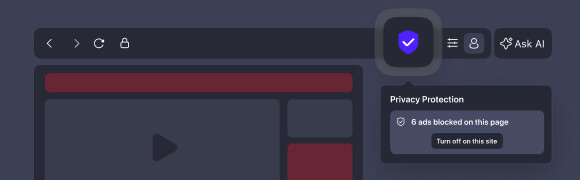
Ad Blocker
Keep your videos and web pages clean. Opera’s built-in Ad Blocker removes ads for faster browsing and uninterrupted playback.

Video Skip
Skip the stuff you don’t want to see. Hover over any video and tap the Video Skip button to jump straight to the content you care about.
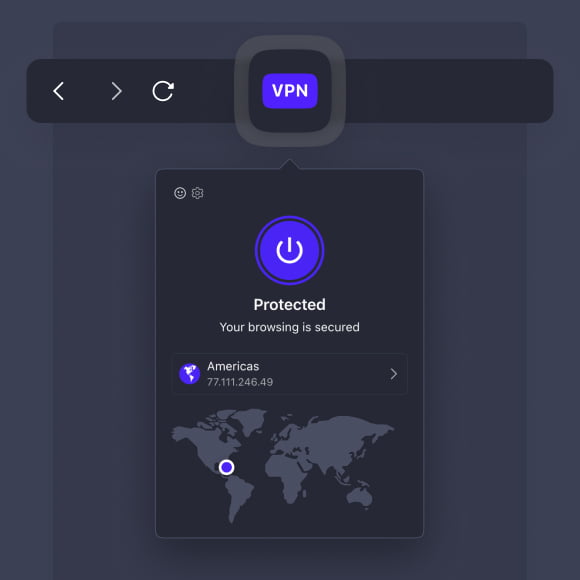
Free VPN
Stay private and avoid geo-restrictions when using Opera’s built-in Free VPN, or VPN Pro with extended locations.
Elevated video experience
Enhance online videos, create separate video windows, and watch in a personalized, comfortable space.
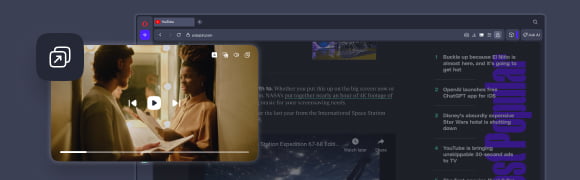
Video Popout
Detach videos into a movable, resizable window. Keep YouTube, Netflix, Twitch, and other streams playing while you browse.

Lucid Mode
Enhance low-quality or older videos instantly. Just hover and click to make videos clearer, sharper, and more vibrant.
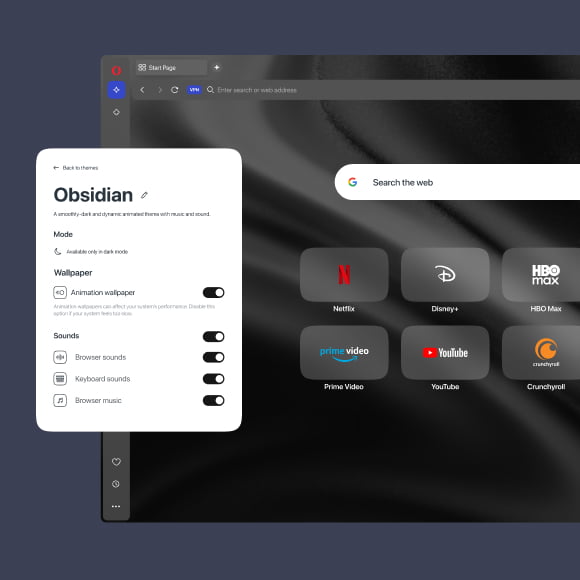
Dark Themes
Switch to Opera’s Mirage and Obsidian themes for night viewing. Protect your eyes and enjoy a more relaxed, comfortable experience.
Never watch alone
Connect instantly to friends and communities while you watch epic battles, game-winning goals, and the content you love.
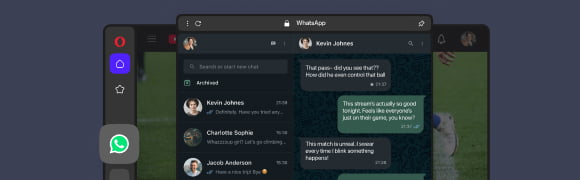
Integrated Messengers
Chat with friends directly in your sidebar while streaming. Share reactions, debate plays, and never miss a message.
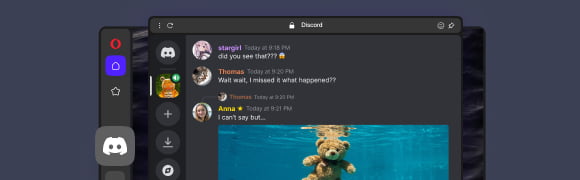
Integrated Discord
Connect with communities without extra apps. Join conversations, catch live streams, and share your screen easily.
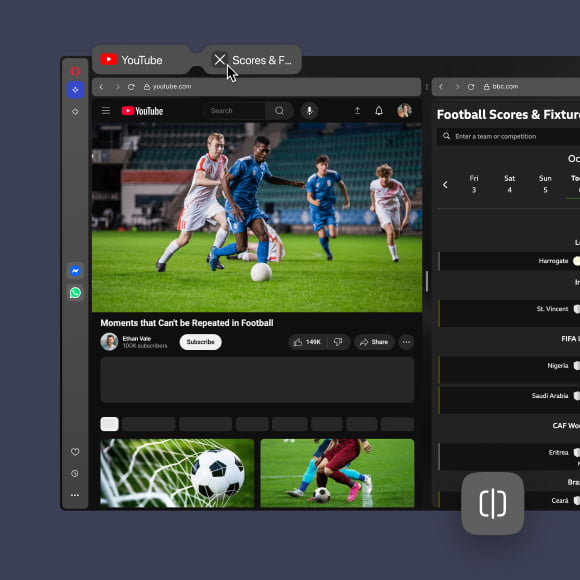
Split Screen
Watch a video on one side while browsing on the other. Catch a game, follow a stream, or binge a series, all while getting things done.
Opera Cashback
Get cashback on your favorite streaming and creative services. Save on CapCut, Adobe, Disney+, Prime Video, and Netflix.
See offers
faq
How do I improve the quality of online videos?
Use the Lucid Mode feature in the Opera browser to enhance your videos, making them sharper and more vibrant. To use it, hover over a supported online video and click the Lucid Mode button.
If the button isn’t visible, go to Easy Setup and toggle Sharpen videos on all sites.
How do I skip ads in videos?
To skip parts of a video in the Opera browser, hover over a video player on supported sites to see the Lucid Mode, Video Popout, and Video Skip buttons. Click the Video Skip button to jump past ads or skip to the end of the video instantly.
How do I turn on the Video Skip feature?
To enable Video Skip in the Opera browser, go to Settings → Advanced → Features, then toggle Show Video Skip button on all supported videos. The button will appear on supported videos when enabled.
How do I add Discord to my Opera browser sidebar?
To add Discord to your sidebar:
- Right-click the sidebar and select Sidebar setup (three-dot menu).
- Under Messengers, click Show more and select Discord.
You can now access Discord directly from your sidebar without leaving the browser.
Can I view two tabs side by side when browsing?
Yes, there are two ways to view tabs side by side in the Opera browser:
- Click and drag a tab down to attach it to one side of your current tab.
- Alternatively, select two tabs, right-click, and choose Create Split Screen.
How do I turn on a dark theme in Opera?
To enable a dark theme:
- Click the Easy Setup button in the top-right corner.
- Under Themes, choose one of Opera’s dark themes: Mirage, Obsidian, Cybercity, Aurora, Twilight, or Isen.
You can also personalize the theme further using the options in the Easy Setup menu.
In Easy Setup, you can also enable the Force dark mode on pages option. This setting applies a dark theme to all the websites you visit. Please note that this may not work perfectly on every page.
Why do videos run better in Opera?
Opera streams videos efficiently using modern codecs like VP9 and AV1, which compress files without losing quality. This reduces buffering, saves data, and keeps visuals sharp.
Built on Chromium, the Opera browser decodes and renders videos smoothly, while integrated DRM ensures secure, uninterrupted playback on streaming platforms. Together, these technologies let you enjoy fast, reliable, high-quality videos without worrying about lag or interruptions.
How can I give feedback or report a problem in Opera?
To report an issue, click the Opera menu → Help → Report an issue.
You can also visit the Opera forums to share your thoughts, ask questions, or suggest new features.
Every bit of feedback helps make Opera better for you and all users.
Videos without limits
Pop out, skip, split, and stream, all while browsing. Opera keeps your videos smooth, private, and uninterrupted.